> ## Documentation Index
> Fetch the complete documentation index at: https://docs.monad.xyz/llms.txt
> Use this file to discover all available pages before exploring further.
# Deploy a smart contract on Monad using Remix
[Remix IDE](https://remix.ethereum.org/) is a browser-based IDE that can be used for the entire journey of smart contract development by users at every knowledge level. It requires no setup, fosters a fast development cycle, and has a rich set of plugins with intuitive GUIs.
In this guide you will learn how to deploy and interact with a simple Greeting smart contract on Monad Testnet using [Remix IDE](https://remix.ethereum.org/).
## Requirements
* You need to have the Monad Testnet network added to your wallet.
## Deploying the smart contract
Head over to [Remix IDE](https://remix.ethereum.org/) in your browser. Click 'Start Coding' to create a new project template.
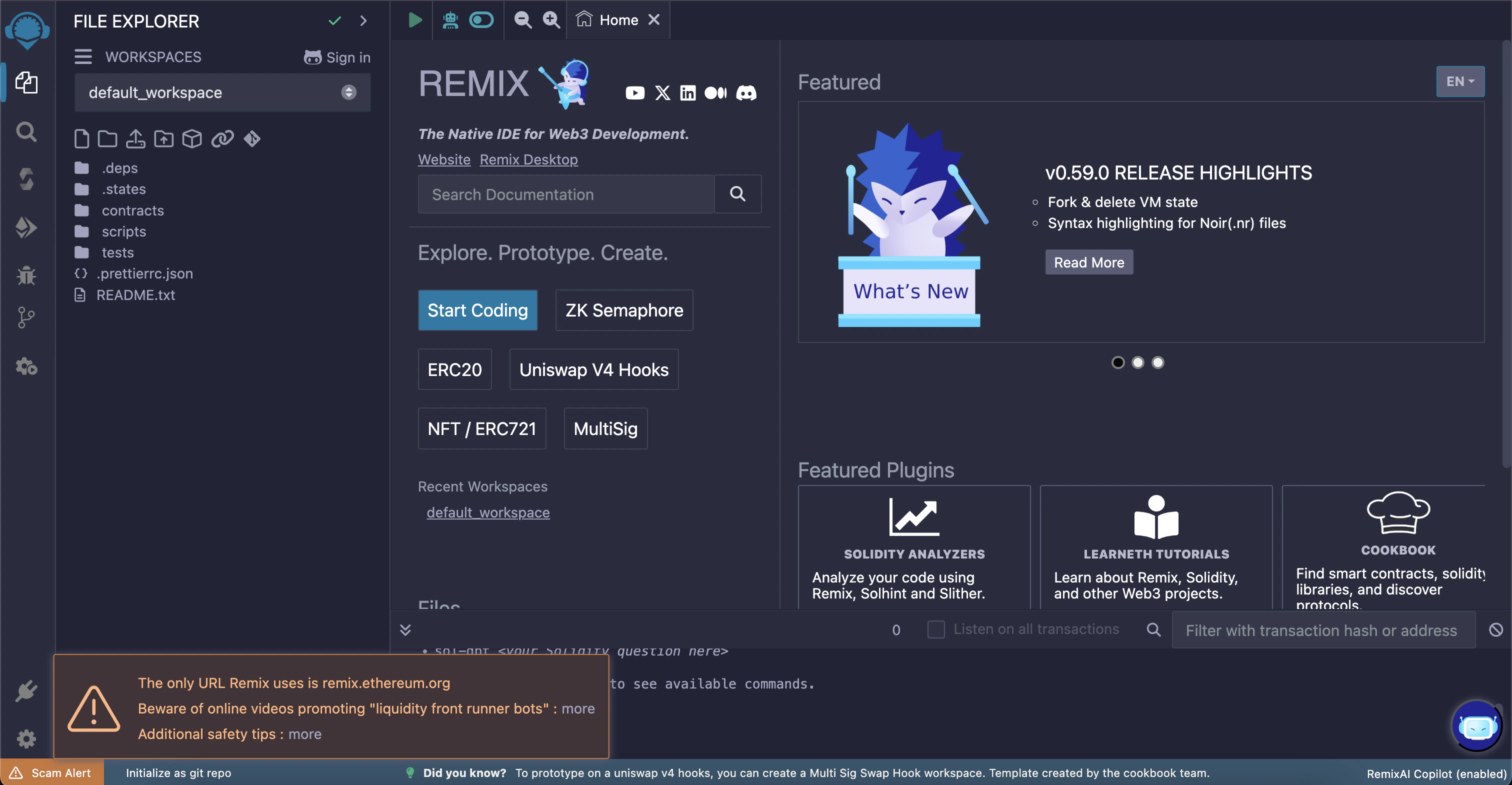 Make sure the 'contracts' folder is selected, then create a new file using the "Create new file" button on top left corner.
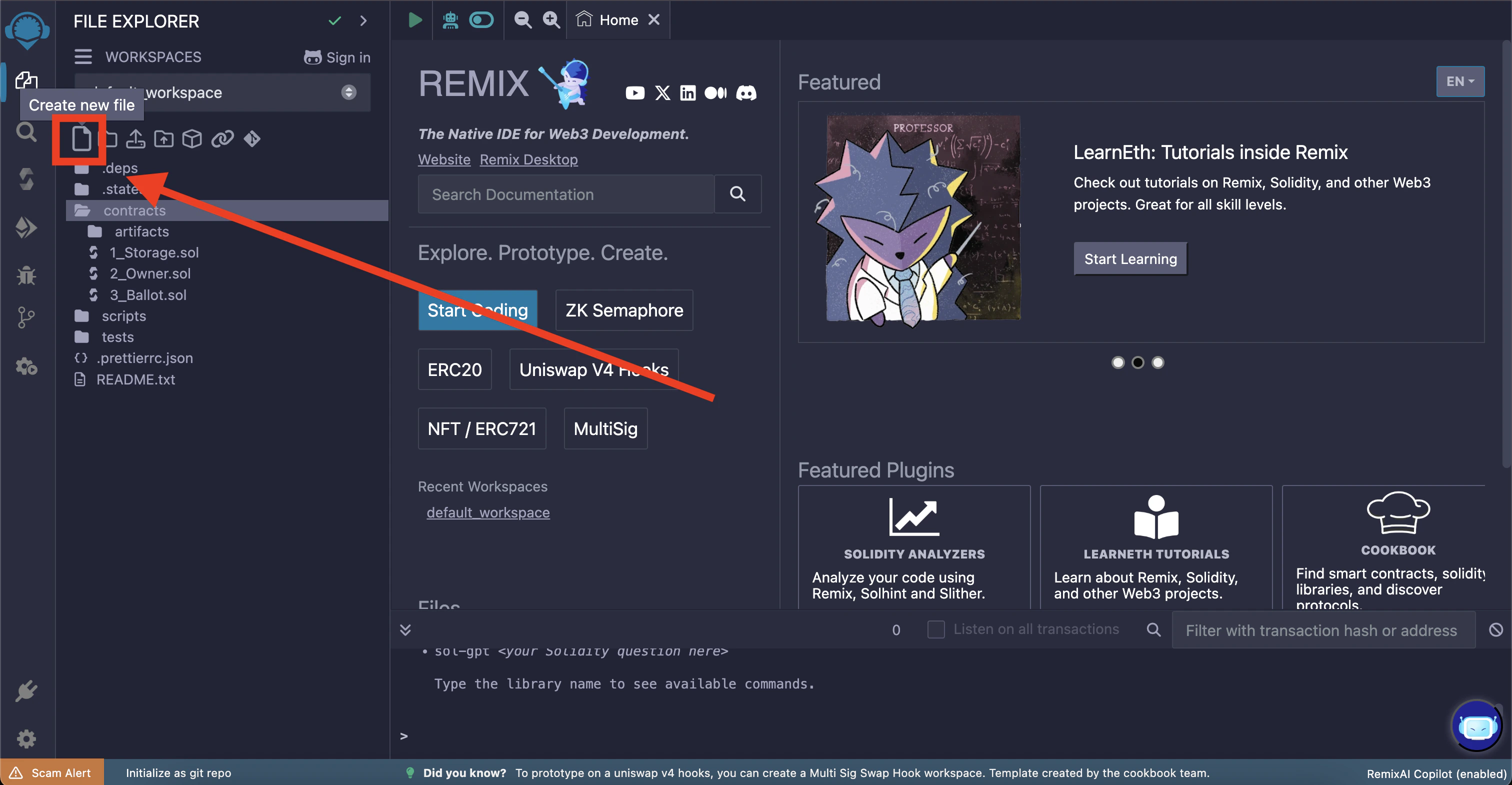 Name the new file "Gmonad.sol" and add the following code to it
```solidity lines title="src/Gmonad.sol" theme={null}
// SPDX-License-Identifier: MIT
pragma solidity ^0.8.24;
contract Gmonad {
string public greeting;
constructor(string memory _greeting) {
greeting = _greeting;
}
function setGreeting(string calldata _greeting) external {
greeting = _greeting;
}
}
```
**Note:** You may see a red squiggly line underneath the `pragma solidity...` line; this is because the default compiler version is outside of the range specified in the contract. We'll fix that in the next step.
Name the new file "Gmonad.sol" and add the following code to it
```solidity lines title="src/Gmonad.sol" theme={null}
// SPDX-License-Identifier: MIT
pragma solidity ^0.8.24;
contract Gmonad {
string public greeting;
constructor(string memory _greeting) {
greeting = _greeting;
}
function setGreeting(string calldata _greeting) external {
greeting = _greeting;
}
}
```
**Note:** You may see a red squiggly line underneath the `pragma solidity...` line; this is because the default compiler version is outside of the range specified in the contract. We'll fix that in the next step.
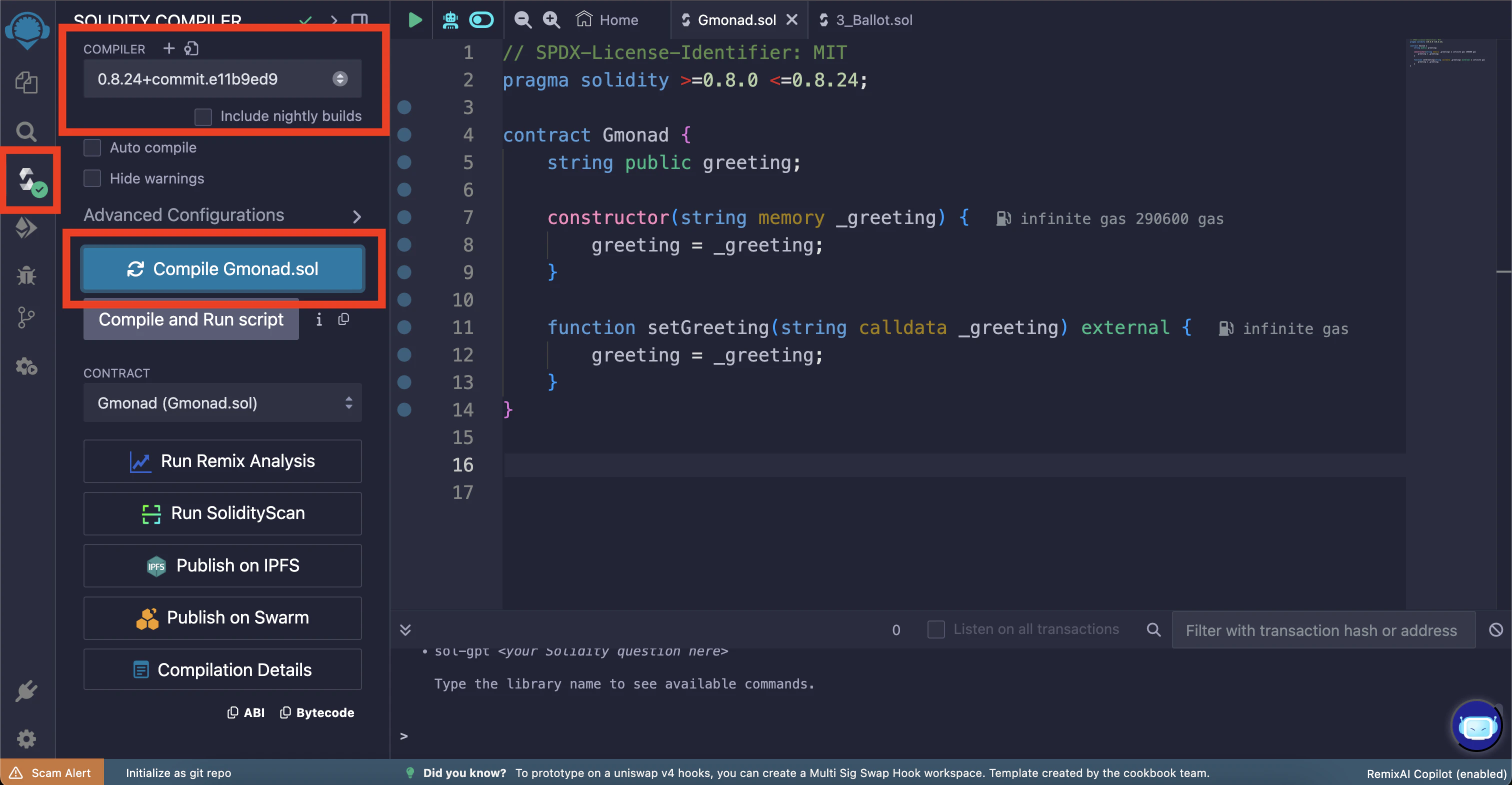
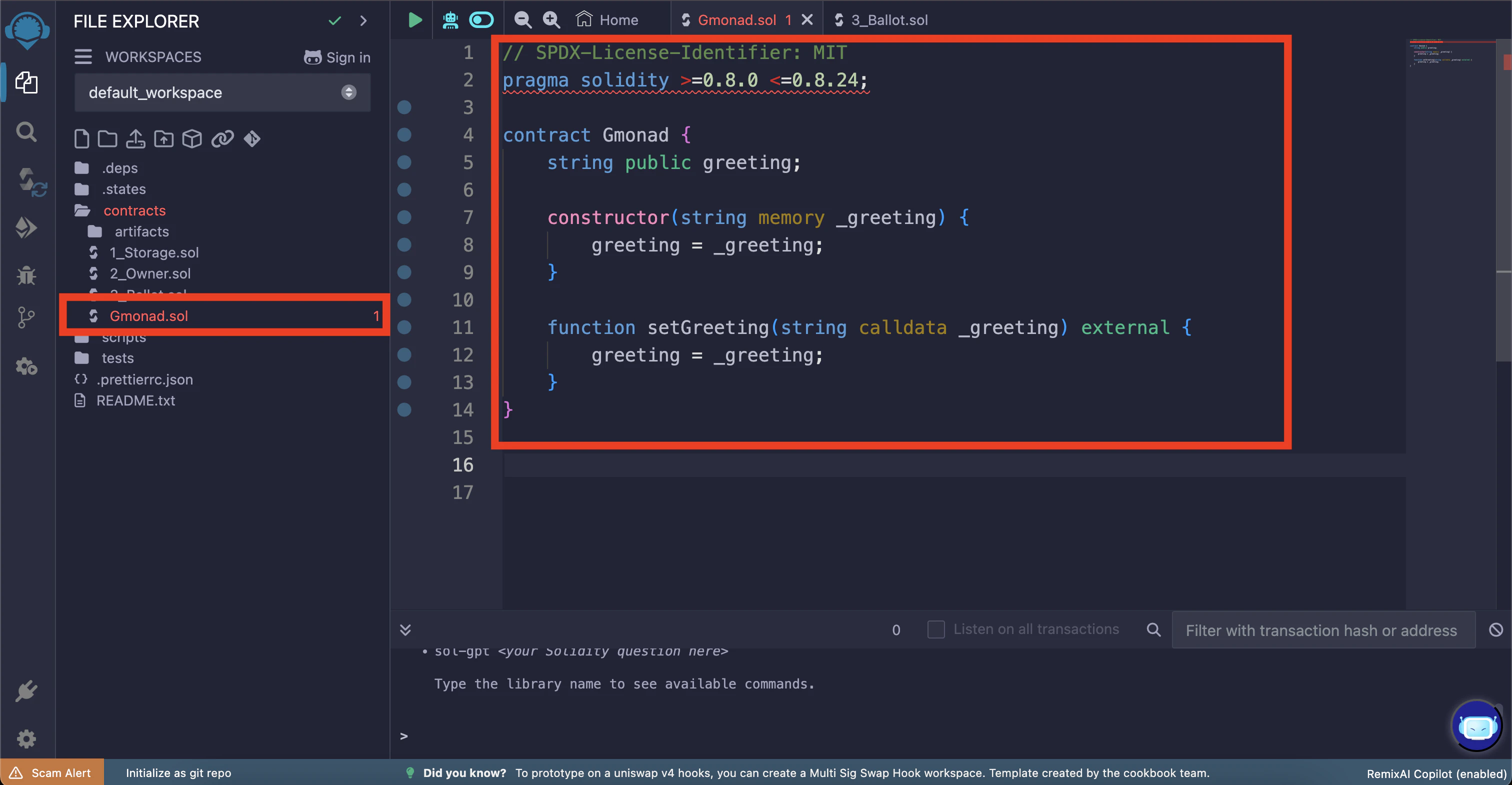 Let's compile the smart contract. Navigate to the compiler view by clicking the "Solidity compiler" tab on the far left. Then select the right compiler version (0.8.24).
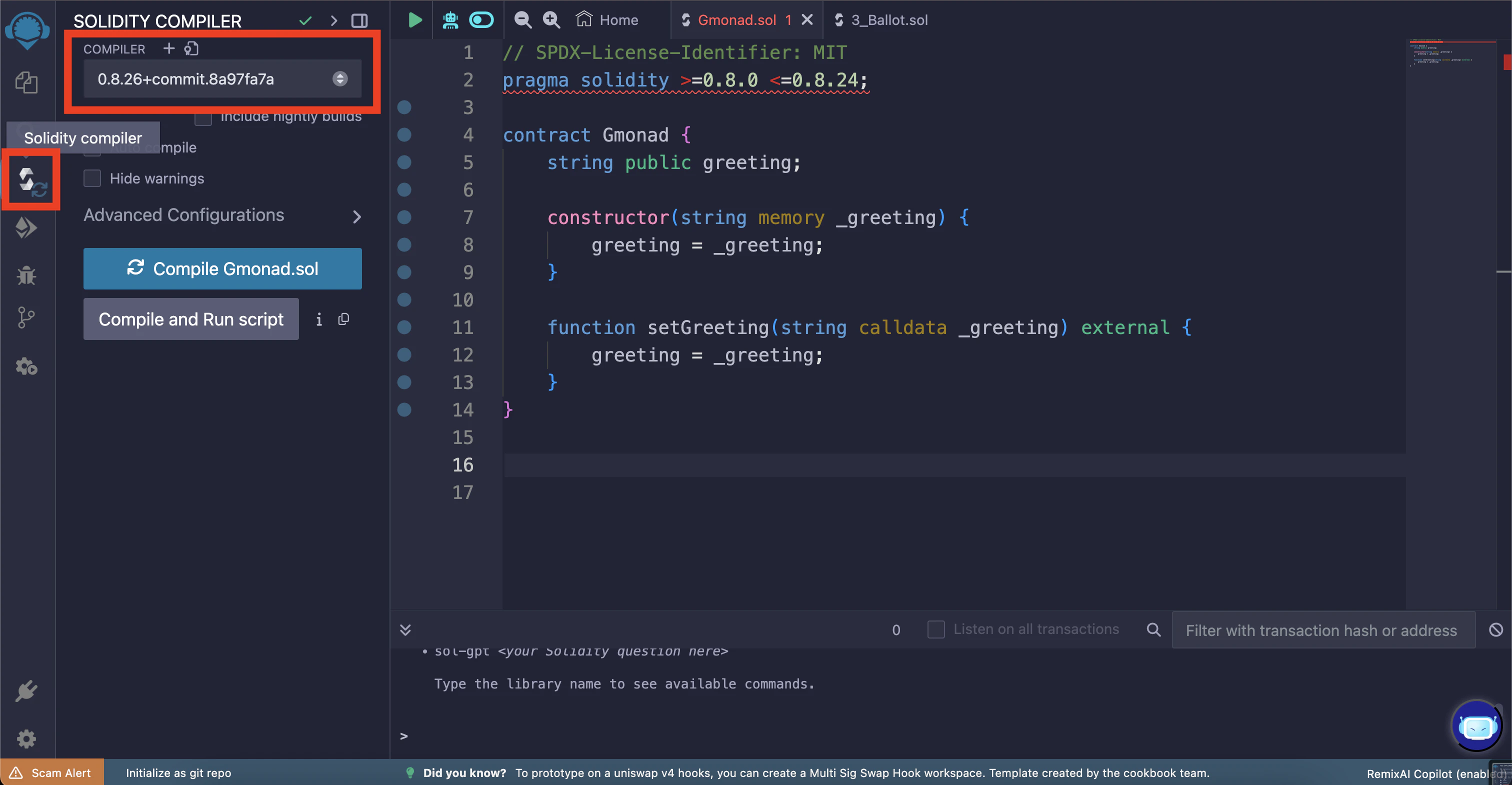 Once you have the right compiler version selected, click on the "Compile Gmonad.sol" button. If succesful, you will see a green check mark on the "Solidity compiler" tab icon.
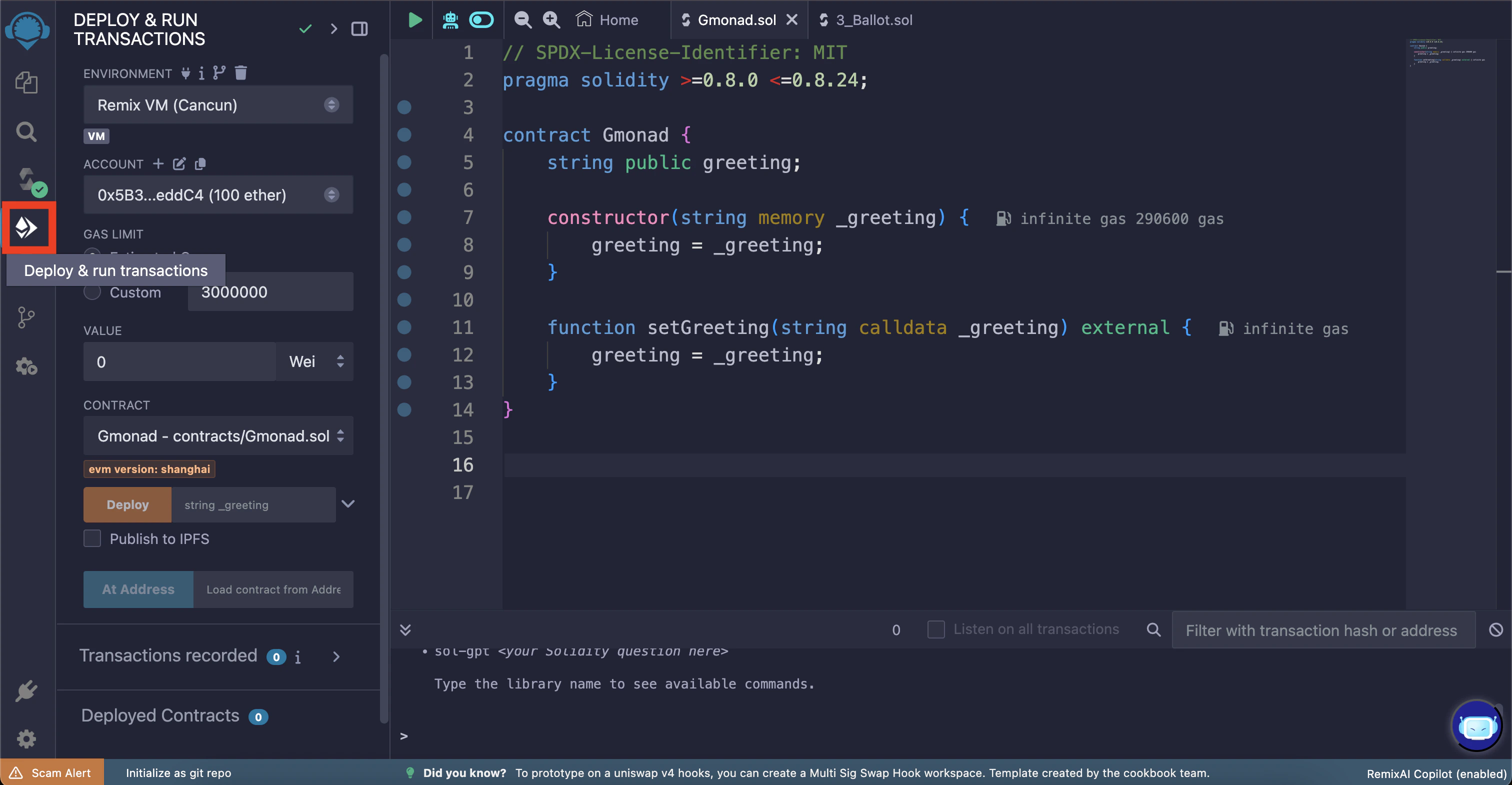
 Now we can deploy the smart contract! Navigate to the deploy view using the "Deploy & run transactions" tab on the far left.
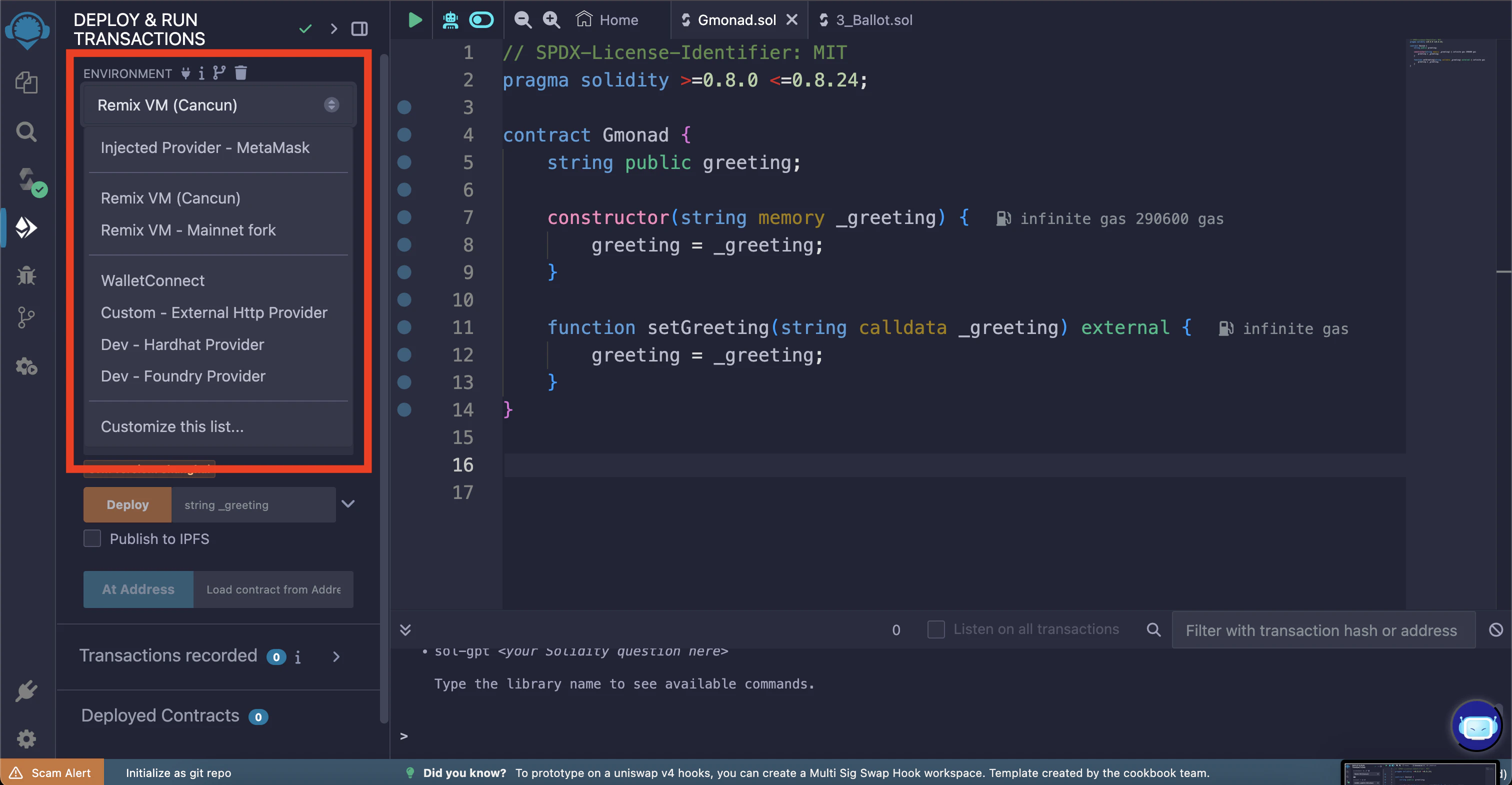
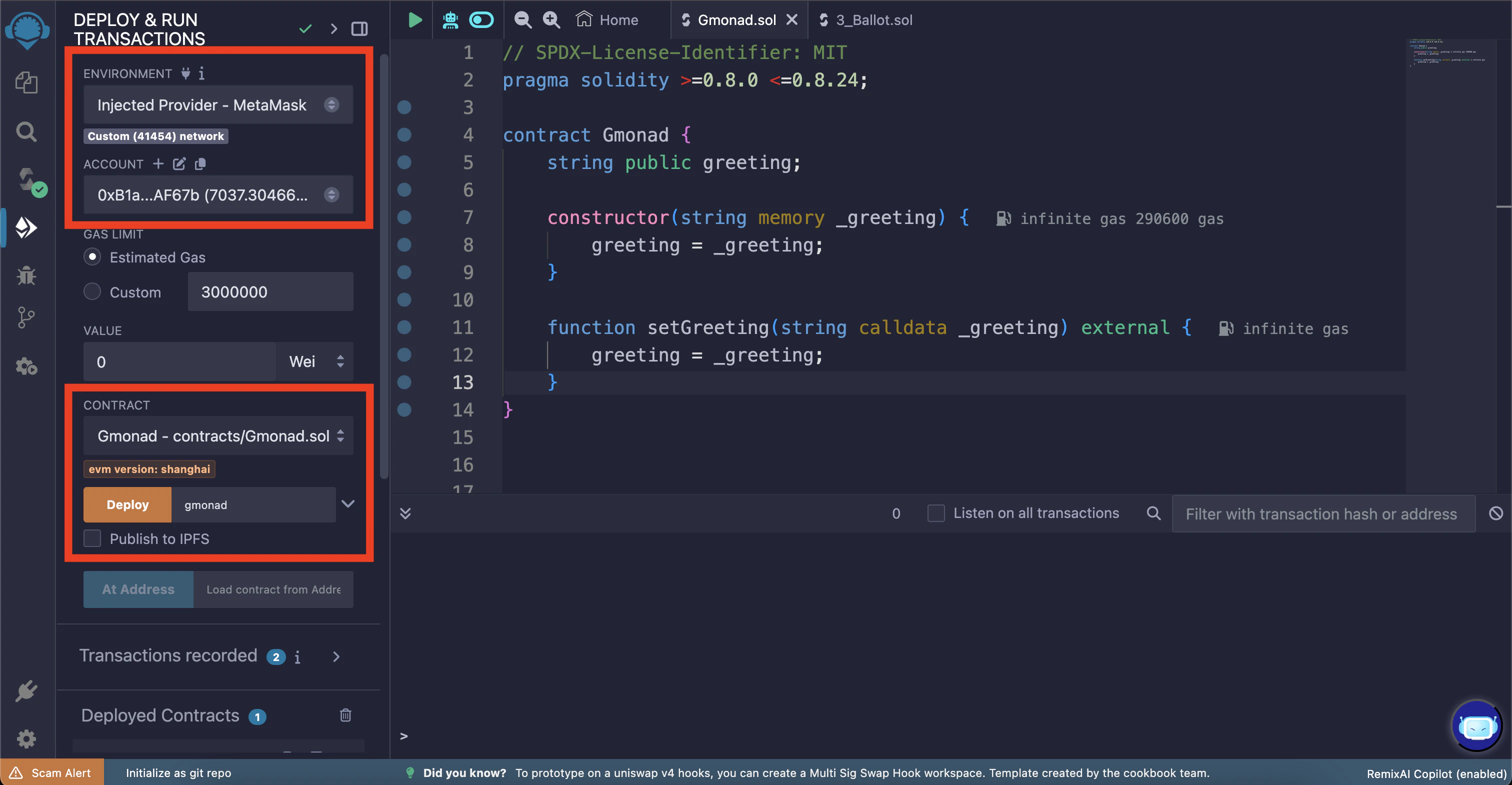
 Using the "Environment" dropdown, select "Injected Provider" to connect to your wallet.
The screenshot below says "Injected Provider - Metamask"; in case you are using some wallet other than Metamask you may see an appropriate option.
Using the "Environment" dropdown, select "Injected Provider" to connect to your wallet.
The screenshot below says "Injected Provider - Metamask"; in case you are using some wallet other than Metamask you may see an appropriate option.
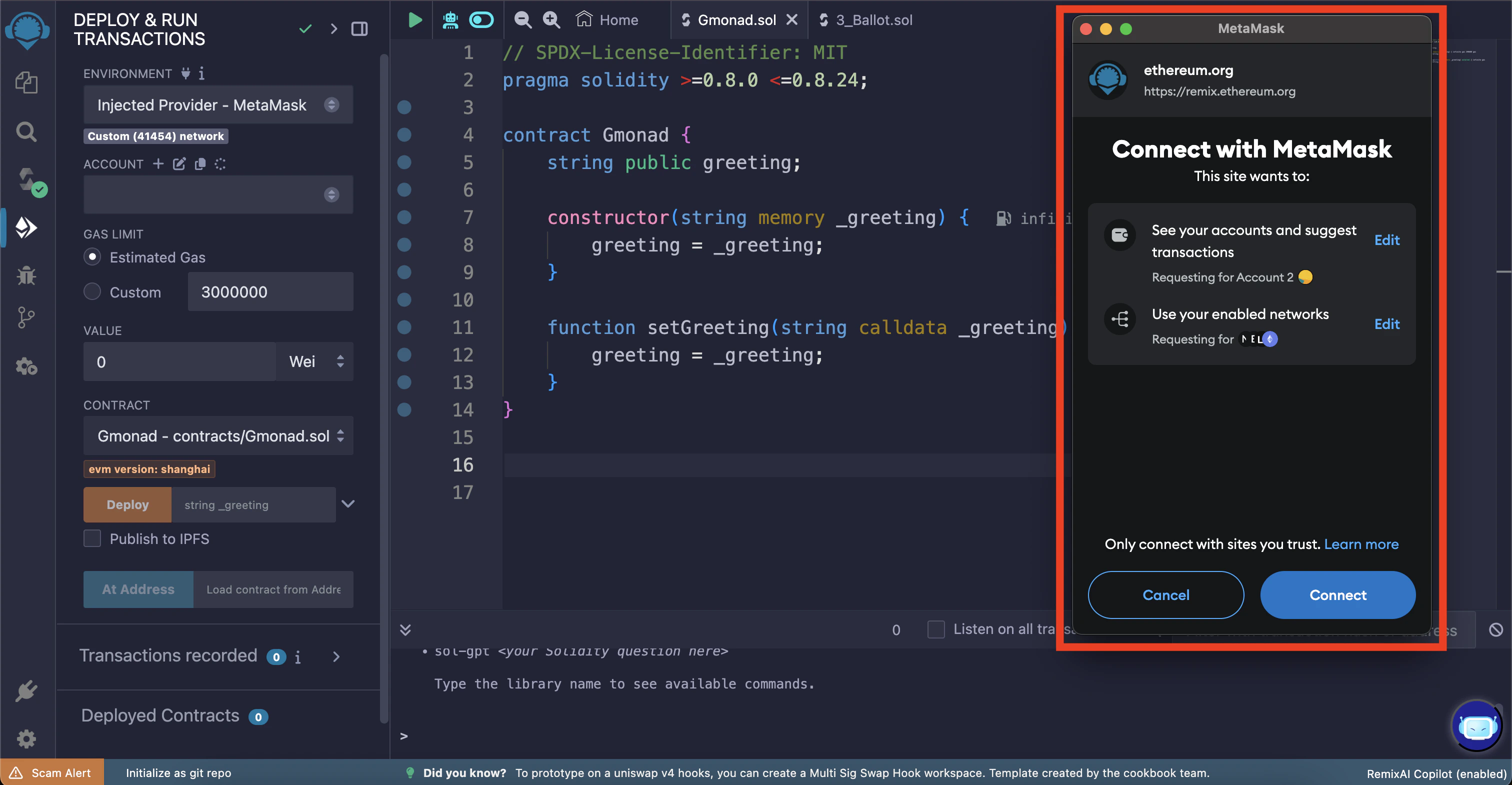
 Your wallet should pop up asking for permission to connect to Remix, click "Connect".
 Once connected you should be able to see your address with your balance in the "Account" dropdown.
Make sure you also see the correct chain id under the "Environment" dropdown.
Now let's deploy the contract. `Gmonad.sol` requires a greeting message to be passed to the constructor before it can be deployed; choose the greeting message of your choice (in this example it is "gmonad").
Now you can deploy the smart contract by clicking the "Deploy" button.
Once connected you should be able to see your address with your balance in the "Account" dropdown.
Make sure you also see the correct chain id under the "Environment" dropdown.
Now let's deploy the contract. `Gmonad.sol` requires a greeting message to be passed to the constructor before it can be deployed; choose the greeting message of your choice (in this example it is "gmonad").
Now you can deploy the smart contract by clicking the "Deploy" button.
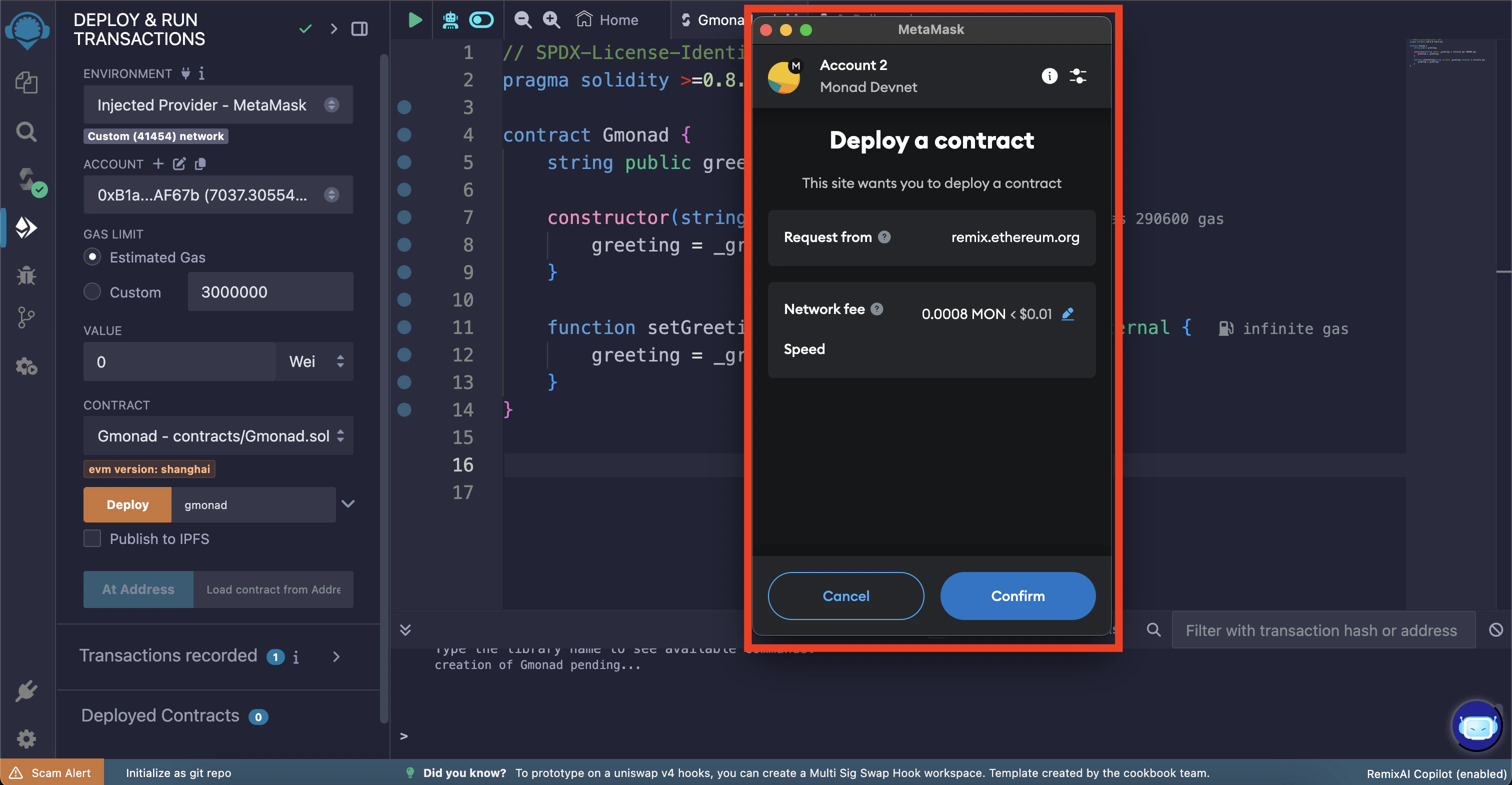
 You should see a wallet popup asking for confirmation to deploy the smart contract. Click "Confirm".
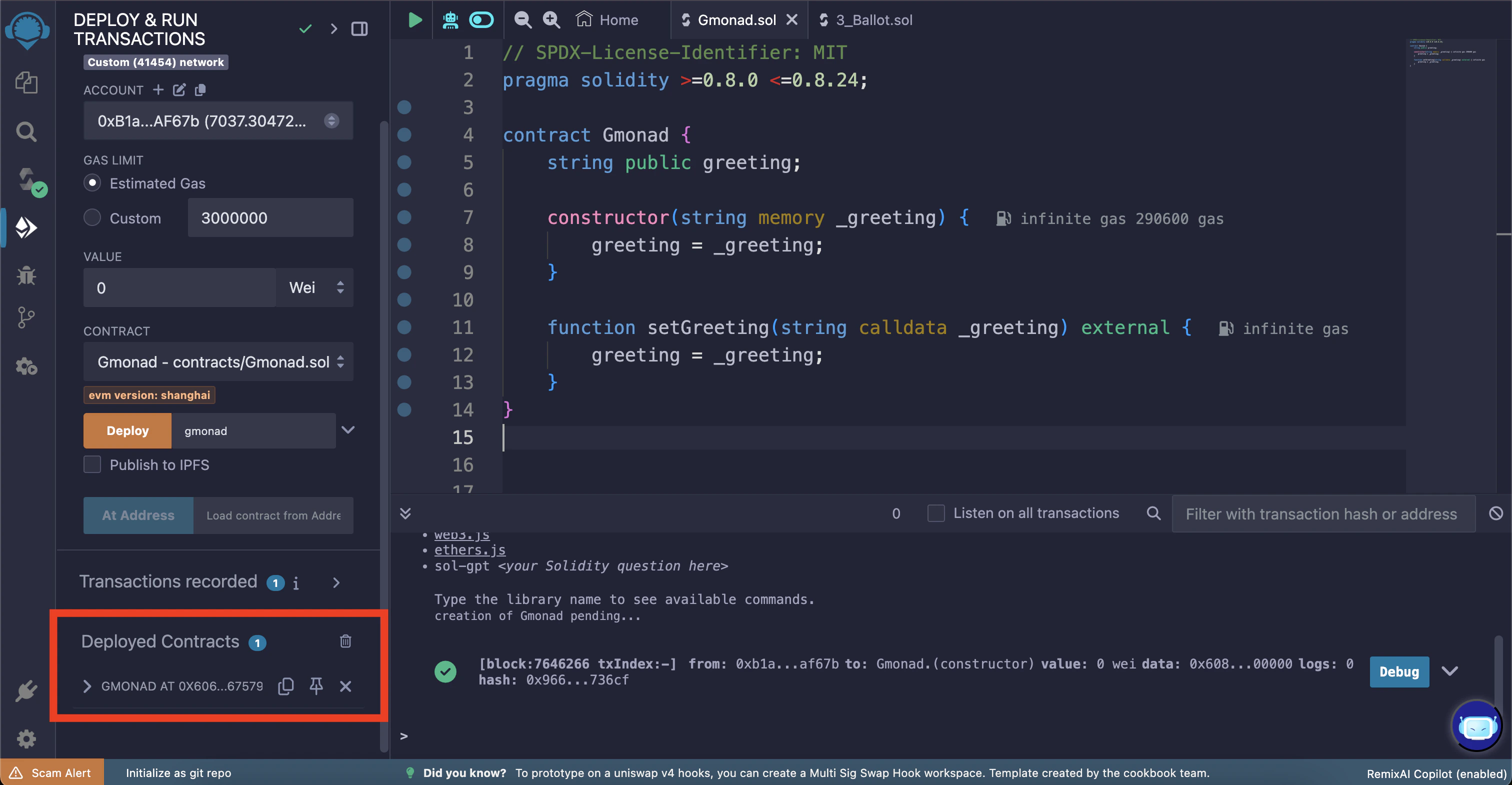
 Once the transaction is confirmed you will see the smart contract address in the "Deployed Contracts" section on the bottom left.
 ## Interacting with the smart contract
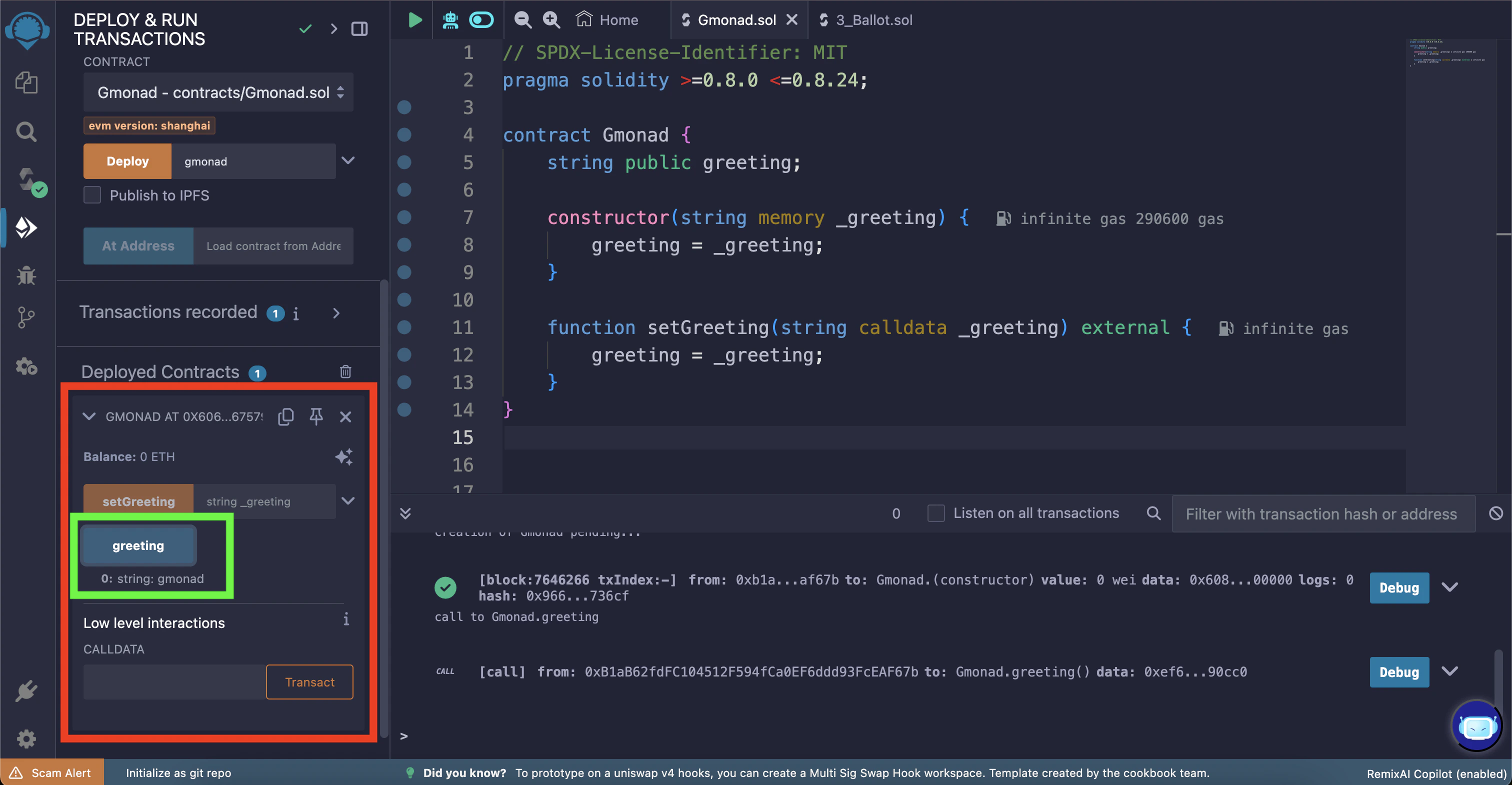
You can expand the smart contract to see the functions available.
There you will find a `greeting` button which can be used to read the current greeting message stored in the smart contract.
Click the "greeting" button to call the `greeting()` method (which outputs the current greeting message). You'll need to click the expand arrow in the terminal output to see the decoded output.
This "greeting" button is a getter function which is automatically created for the *public* `greeting` state variable in the smart contract.
## Interacting with the smart contract
You can expand the smart contract to see the functions available.
There you will find a `greeting` button which can be used to read the current greeting message stored in the smart contract.
Click the "greeting" button to call the `greeting()` method (which outputs the current greeting message). You'll need to click the expand arrow in the terminal output to see the decoded output.
This "greeting" button is a getter function which is automatically created for the *public* `greeting` state variable in the smart contract.
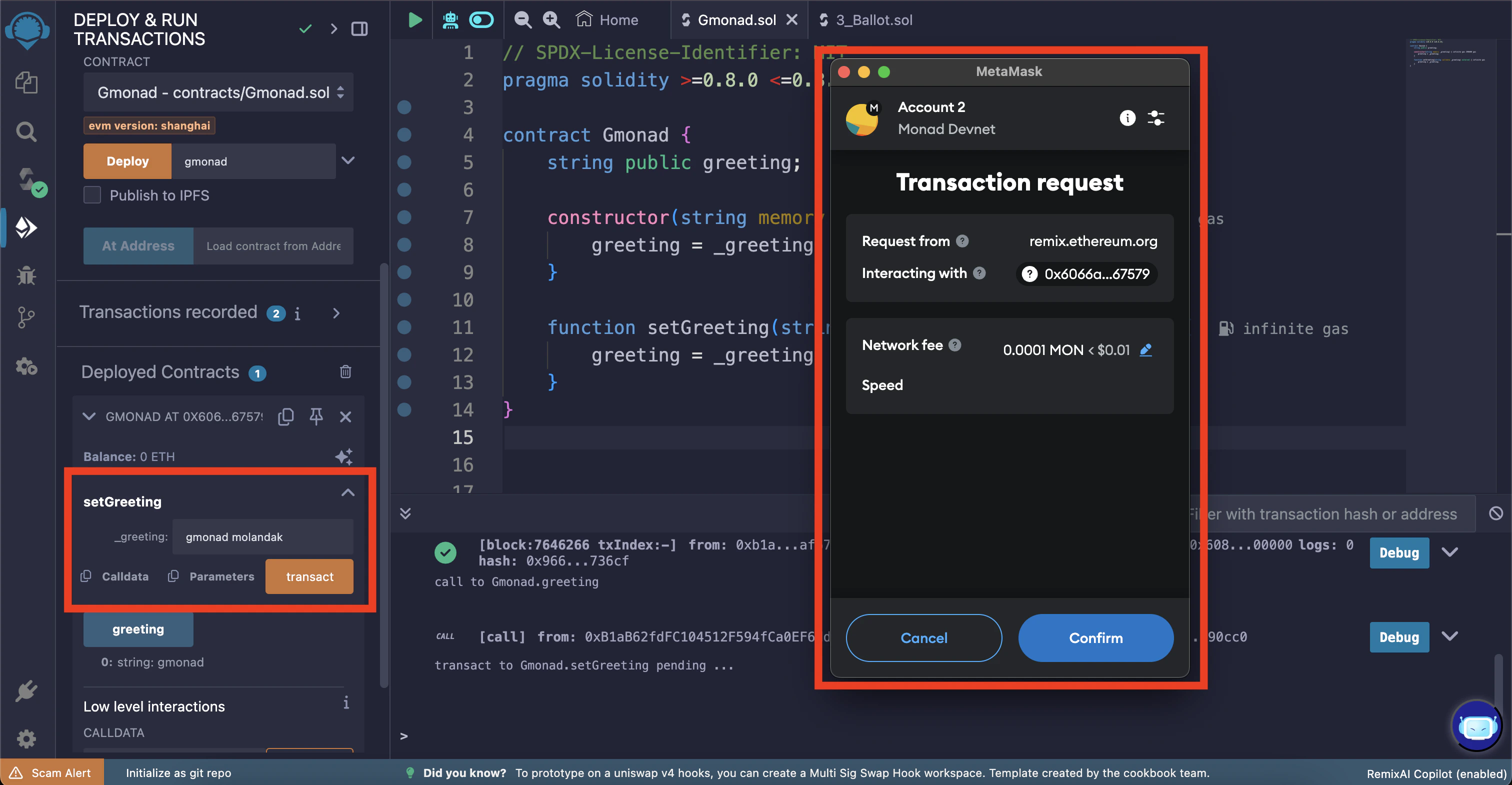
 You can change the greeting message by using the `setGreeting` function.
In this example, we will change the greeting message to "gmonad molandak".
Once again, click the "transact" button to initiate the transaction.
You should see a wallet popup asking for confirmation to change the greeting message. Click "Confirm".
You can change the greeting message by using the `setGreeting` function.
In this example, we will change the greeting message to "gmonad molandak".
Once again, click the "transact" button to initiate the transaction.
You should see a wallet popup asking for confirmation to change the greeting message. Click "Confirm".
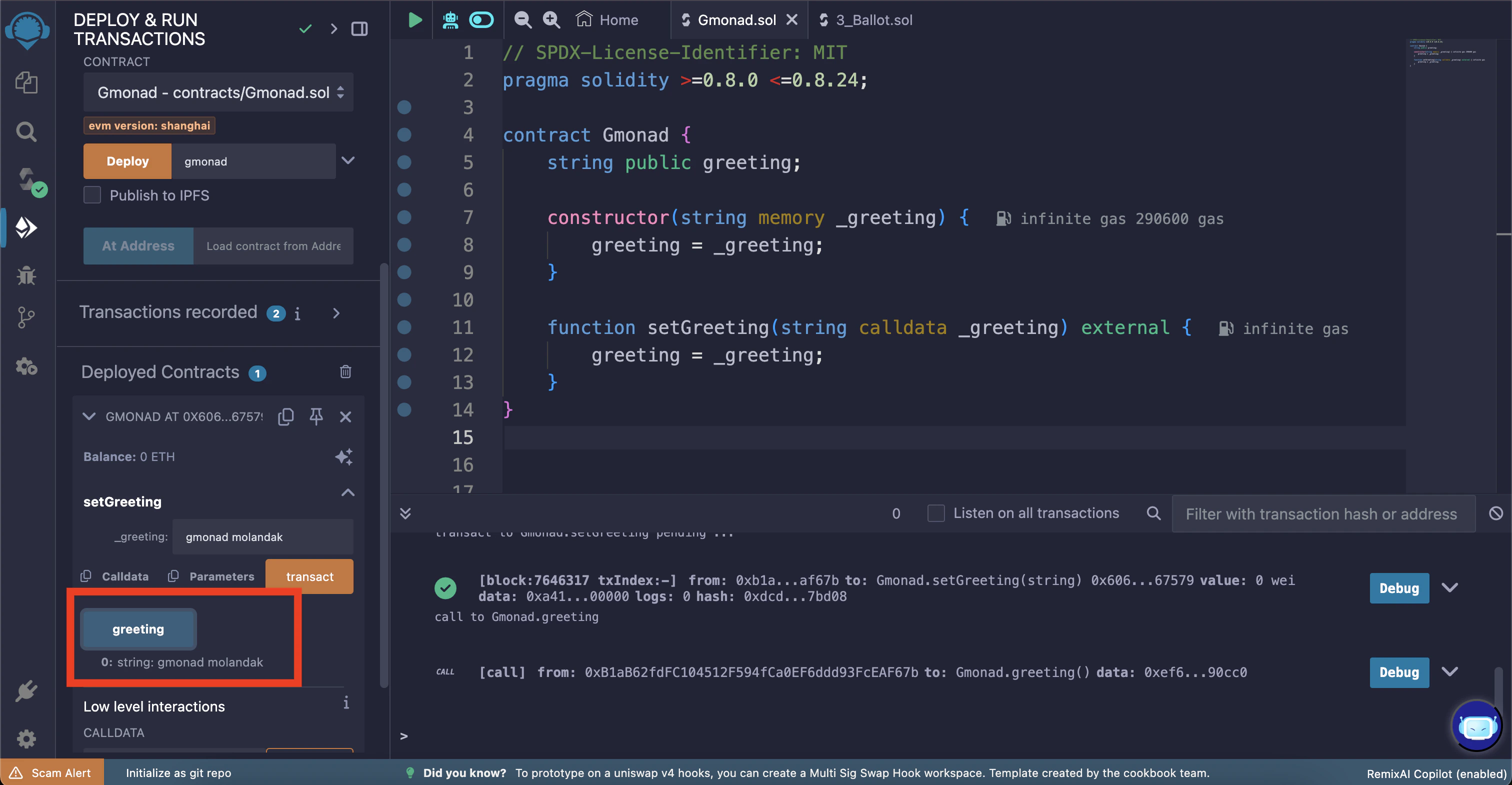
 Once the transaction is confirmed you can view the updated greeting message using the `greeting` button.
 Congratulations! You have successfully deployed and interacted with a smart contract on Monad Testnet using Remix IDE.
{/* ## Next steps
Check out how to verify your smart contract on Monad using Explorer */}
Congratulations! You have successfully deployed and interacted with a smart contract on Monad Testnet using Remix IDE.
{/* ## Next steps
Check out how to verify your smart contract on Monad using Explorer */}