> ## Documentation Index
> Fetch the complete documentation index at: https://docs.monad.xyz/llms.txt
> Use this file to discover all available pages before exploring further.
# How to use the Next.js PWA Privy embedded wallet template
This guide walks you through using the [template](https://github.com/monad-developers/next-serwist-privy-embedded-wallet) which uses [Next.js](https://nextjs.org/docs), [Serwist](https://serwist.pages.dev/) (offline capabilities), and [Privy embedded wallet](https://docs.privy.io/wallets/wallets/create/create-a-wallet) to build a Progressive Web App (PWA) on Monad.
This template also has a `no-privy` branch that you can switch to in order to start without Privy.
You can switch using the following command:
```
git checkout no-privy
```
## Prerequisites
* [Node.js](https://nodejs.org/) (v18 or higher)
* a [Privy account](https://www.privy.io/)
1. Create your Privy app:
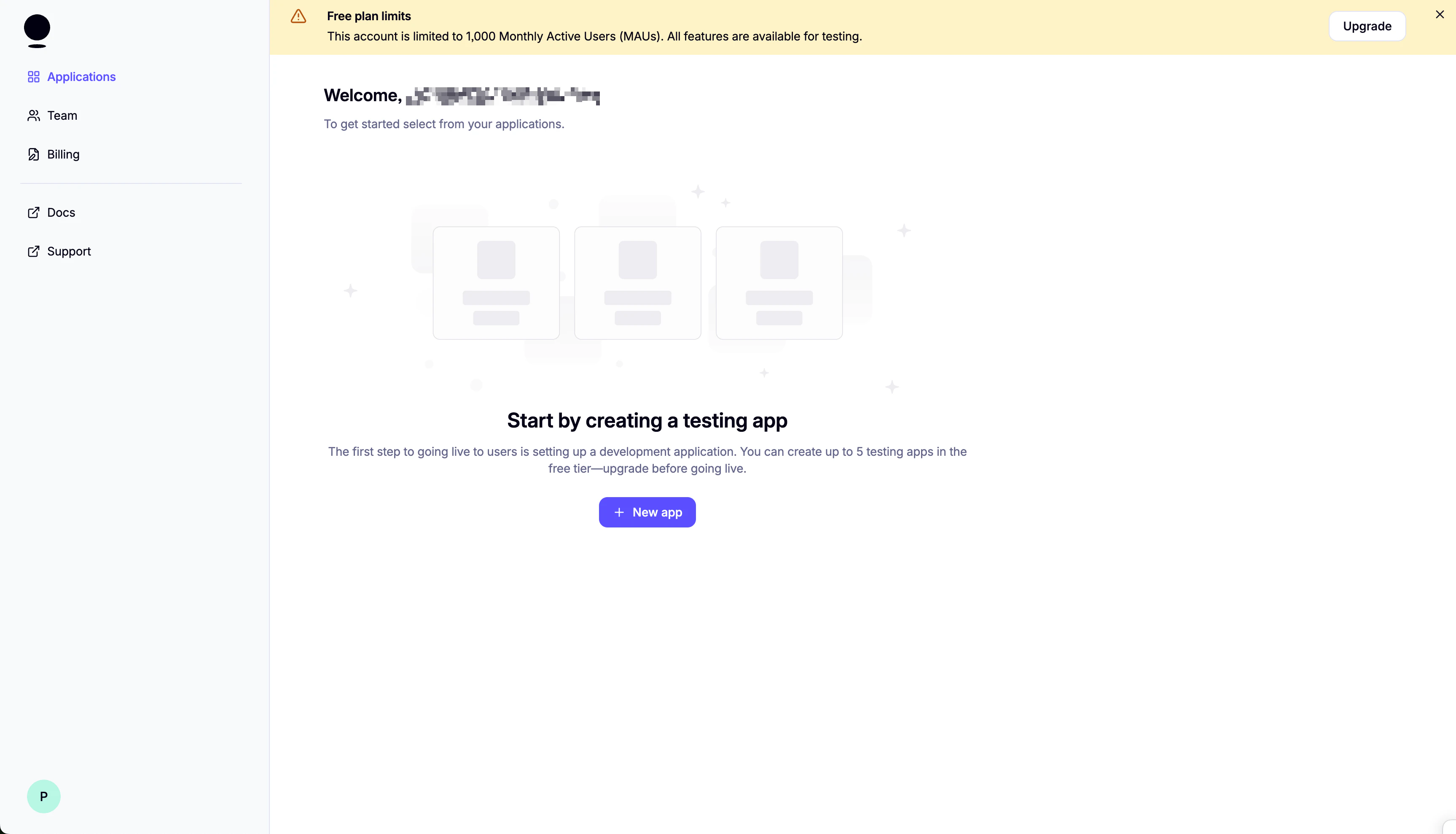 Select "Web" as the platform. Then, click "Create app".
 On the next screen, make sure to save your App ID.
2. Set up login methods:
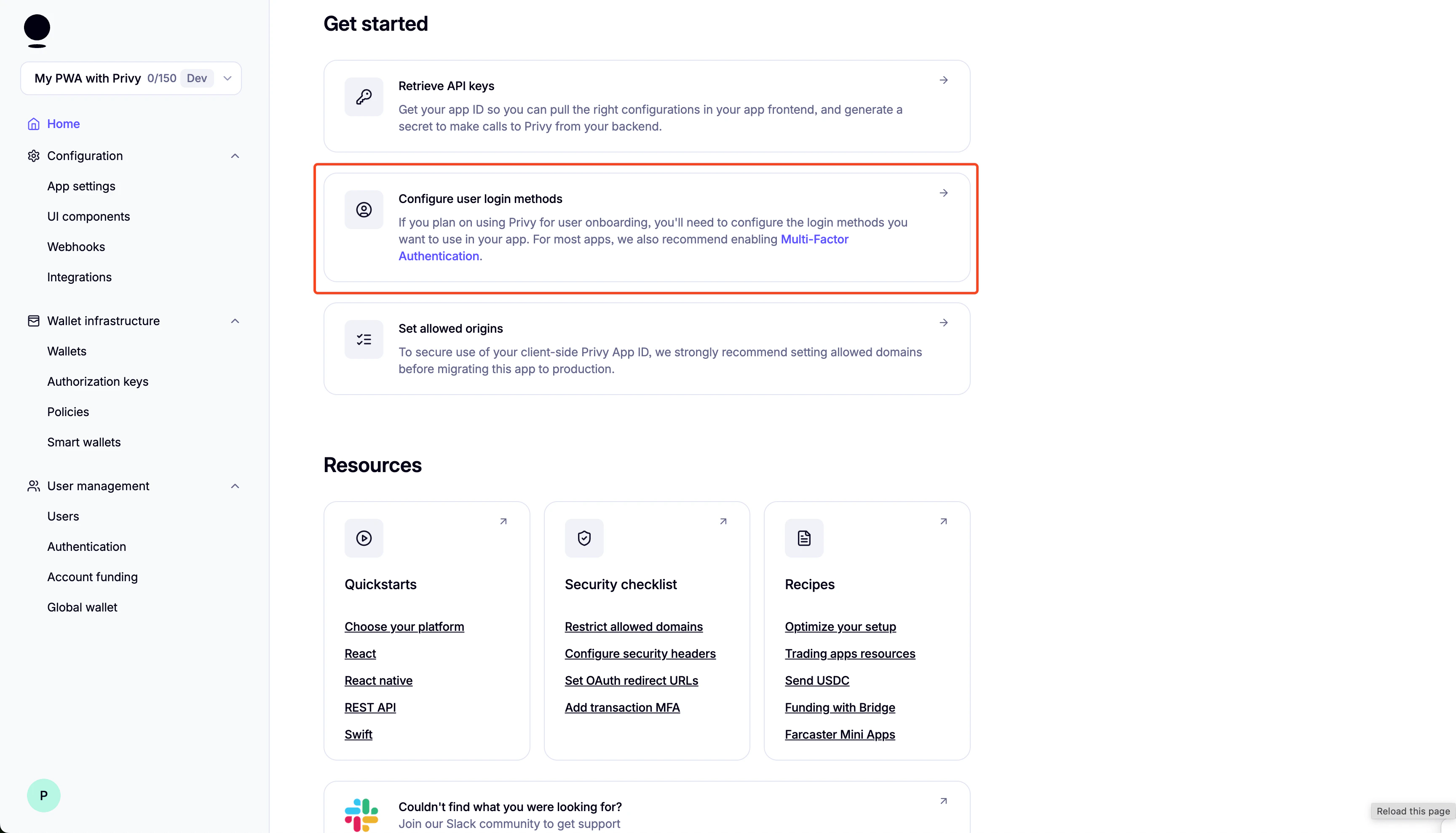
3. Disable External Wallets:

4. Scroll down and enable "Automatically create embedded wallets on login" and select "EVM Wallets":
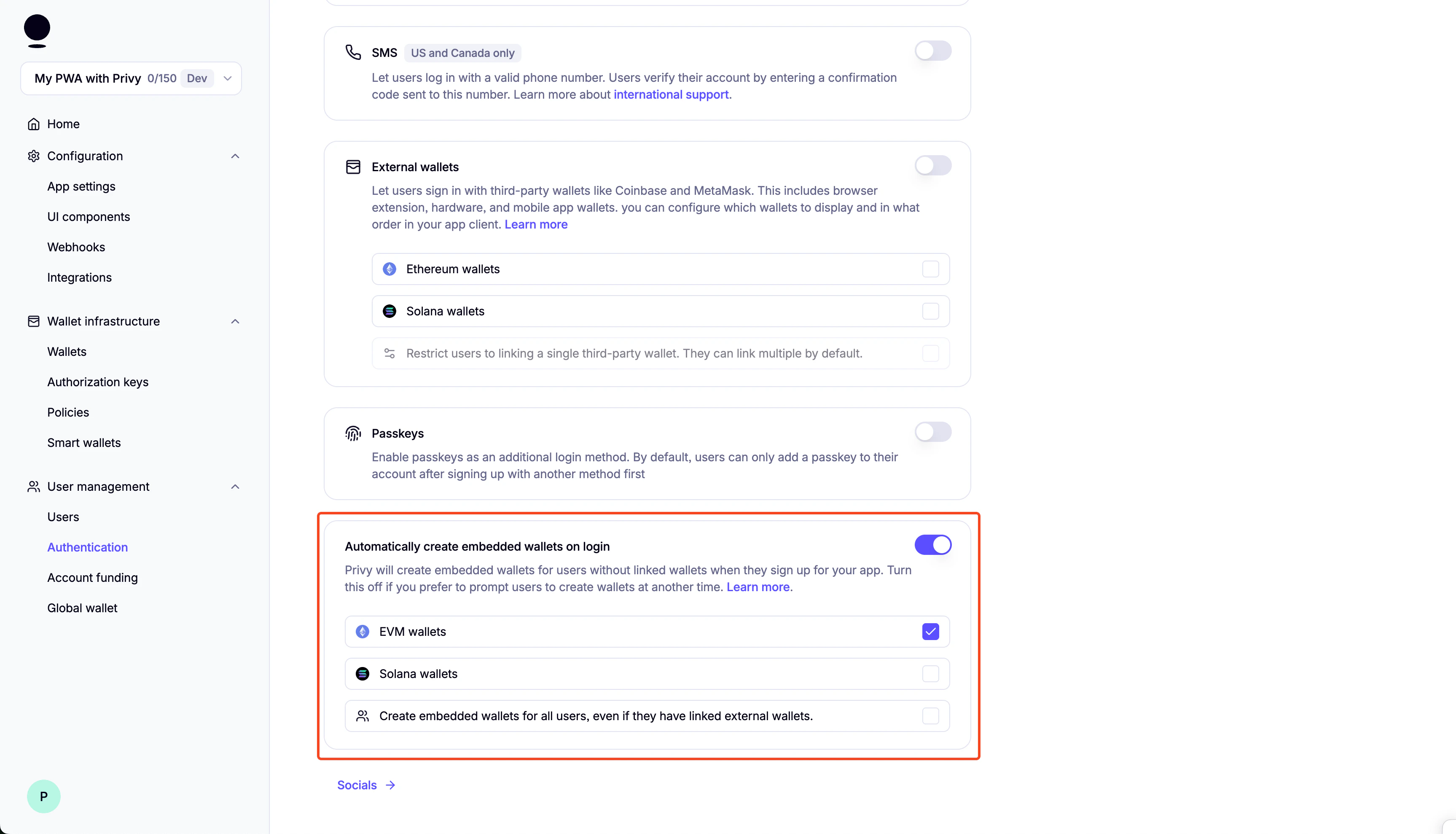
You can enable "Test Accounts" for testing purposes:
 ## Setup
1. Clone the repository:
```bash theme={null}
git clone https://github.com/monad-developers/next-serwist-privy-embedded-wallet.git
```
2. `cd` into the project directory:
```bash theme={null}
cd next-serwist-privy-embedded-wallet
```
3. Install dependencies:
```bash theme={null}
npm install
```
4. Create a `.env.local` file in the root directory:
```bash theme={null}
cp .env.example .env.local
```
5. Start adding your environment variables to the `.env.local` file:
```bash theme={null}
# Privy
NEXT_PUBLIC_PRIVY_APP_ID=your_privy_app_id_here
NEXT_PUBLIC_PRIVY_CLIENT_ID= # optional, you can leave this empty
# VAPID Keys for push notifications
NEXT_PUBLIC_VAPID_PUBLIC_KEY=your_vapid_public_key_here
VAPID_PRIVATE_KEY=your_vapid_private_key_here
```
If you lost your Privy App ID, you can find it in the Privy dashboard.
6. Generate VAPID keys for web push notifications:
```bash theme={null}
npx web-push generate-vapid-keys --json
```
Copy the generated keys to your .env.local file (replace the placeholder values from step 5).
7. Running the Application:
**Development Mode**:
```bash theme={null}
npm run dev
```
The application will be available at [http://localhost:3000](http://localhost:3000).
**Production Mode:**
For full PWA functionality (including install prompts):
```bash theme={null}
npm run build && npm run start
```
## Folder structure of the template
```
next-serwist-privy-embedded-wallet/
├── app/
│ ├── components/ # React components
│ │ ├── InstallPWA.tsx # PWA install prompt
│ │ └── ...
│ ├── ~offline/ # Offline page
│ └── ...
├── public/ # Static assets
└── ...
```
## Changing the app name
* Edit [`public/manifest.json`](https://github.com/monad-developers/next-serwist-privy-embedded-wallet/blob/main/public/manifest.json):
* Change the `name` and `short_name` fields
* Run `npm run build` to update the app
## Notification Setup
To receive push notifications from this app, you need to enable notifications in your browser and/or system settings:
### Browser Settings
1. Click the lock icon 🔒 in the address bar
2. Set "Notifications" to "Allow"
3. Or go to Settings → Privacy and security → Site Settings → Notifications
1. Click the shield icon 🛡️ in the address bar
2. Turn off "Enhanced Tracking Protection" for this site (if needed)
3. Allow notifications when prompted
4. Or go to Settings → Privacy & Security → Permissions → Notifications
1. Go to Safari → Settings → Websites → Notifications
2. Find your site and set it to "Allow"
### System Settings
1. System Preferences → Notifications & Focus
2. Find your browser and ensure notifications are enabled
3. Check "Allow notifications from websites" in browser settings
1. Settings → System → Notifications & actions
2. Ensure your browser can send notifications
3. Check browser notification settings
1. Settings → Notifications → \[Your Browser]
2. Enable "Allow Notifications"
3. Also enable in browser settings
1. Settings → Apps → \[Your Browser] → Notifications
2. Enable notifications
3. Check browser notification permissions
### Backend Integration Required
[`SendNotification.tsx`](https://github.com/monad-developers/next-serwist-privy-embedded-wallet/blob/main/app/components/SendNotification.tsx) requires backend implementation:
* **Save subscription data** when users subscribe (see TODO comments in code)
* **Delete subscription data** when users unsubscribe
* **Implement `/notification` endpoint** to send actual push notifications
* **Use `web-push` library** or similar for server-side notification delivery
### Customizing Notification Content
To customize your push notification content, edit [`app/notification/route.ts`](https://github.com/monad-developers/next-serwist-privy-embedded-wallet/blob/main/app/notification/route.ts) and modify the `title`, `message`, `icon`, and other properties in the `sendNotification` call.
## Modifying the App Icon & Splash Screen
### App Icons
Replace the icon files in the [`public/icons/`](https://github.com/monad-developers/next-serwist-privy-embedded-wallet/tree/main/public/icons) directory with your custom icons:
* **`icon-512x512.png`** - Main app icon (512×512px)
* **`android-chrome-192x192.png`** - Android icon (192×192px)
* **`apple-touch-icon.png`** - iOS home screen icon (180×180px)
Also update the favicon:
* **`public/favicon.ico`** - Browser favicon
* **`app/favicon.ico`** - Next.js app favicon
### Splash Screen
Splash screens are automatically generated from your app icon and theme colors defined in [`public/manifest.json`](https://github.com/monad-developers/next-serwist-privy-embedded-wallet/blob/main/public/manifest.json). To customize:
1. Update the `theme_color` and `background_color` in [`public/manifest.json`](https://github.com/monad-developers/next-serwist-privy-embedded-wallet/blob/main/public/manifest.json)
2. Ensure your main icon (`icon-512x512.png`) represents your brand
3. Run `npm run build` to apply changes
Use tools like [PWA Asset Generator](https://www.pwabuilder.com/imageGenerator) to create all required icon sizes from a single source image.
## Deploying to Vercel
### Using Vercel Dashboard
1. **Connect your repository**:
* Push your code to GitHub
* Visit [vercel.com](https://vercel.com) and import your repository
2. **Configure environment variables**:
* In your Vercel project dashboard, go to Settings → Environment Variables
* Add the same variables from your `.env.local`:
```
NEXT_PUBLIC_PRIVY_APP_ID
NEXT_PUBLIC_PRIVY_CLIENT_ID
NEXT_PUBLIC_VAPID_PUBLIC_KEY
VAPID_PRIVATE_KEY
```
3. **Deploy**: Vercel will automatically build and deploy your app
4. **Update Privy settings**: In your Privy dashboard, add your Vercel domain (e.g., `your-app.vercel.app`) to the allowed origins
PWA features (install prompts, offline support, push notifications) work automatically on HTTPS domains like Vercel deployments.
### Using Vercel CLI
Alternatively, deploy using the Vercel CLI:
1. **Install Vercel CLI**:
```bash theme={null}
npm i -g vercel
```
2. **Login to Vercel**:
```bash theme={null}
vercel login
```
3. **Deploy**:
```bash theme={null}
vercel
```
Follow the prompts to configure your project.
4. **Add environment variables**:
```bash theme={null}
vercel env add NEXT_PUBLIC_PRIVY_APP_ID
vercel env add NEXT_PUBLIC_PRIVY_CLIENT_ID
vercel env add NEXT_PUBLIC_VAPID_PUBLIC_KEY
vercel env add VAPID_PRIVATE_KEY
```
Or you can go to the Vercel dashboard and add the environment variables there.
5. **Redeploy with environment variables**:
```bash theme={null}
vercel --prod
```
## Learn more
* Serwist: [docs](https://serwist.pages.dev/) | [guides](https://serwist.pages.dev/docs/next/getting-started)
* Privy: [create a wallet](https://docs.privy.io/wallets/wallets/create/create-a-wallet) | [send a transaction](https://docs.privy.io/wallets/using-wallets/ethereum/send-a-transaction) | [sign a transaction](https://docs.privy.io/wallets/using-wallets/ethereum/sign-a-transaction)
* Monad: [supported tooling and infra](/tooling-and-infra)
## Setup
1. Clone the repository:
```bash theme={null}
git clone https://github.com/monad-developers/next-serwist-privy-embedded-wallet.git
```
2. `cd` into the project directory:
```bash theme={null}
cd next-serwist-privy-embedded-wallet
```
3. Install dependencies:
```bash theme={null}
npm install
```
4. Create a `.env.local` file in the root directory:
```bash theme={null}
cp .env.example .env.local
```
5. Start adding your environment variables to the `.env.local` file:
```bash theme={null}
# Privy
NEXT_PUBLIC_PRIVY_APP_ID=your_privy_app_id_here
NEXT_PUBLIC_PRIVY_CLIENT_ID= # optional, you can leave this empty
# VAPID Keys for push notifications
NEXT_PUBLIC_VAPID_PUBLIC_KEY=your_vapid_public_key_here
VAPID_PRIVATE_KEY=your_vapid_private_key_here
```
If you lost your Privy App ID, you can find it in the Privy dashboard.
6. Generate VAPID keys for web push notifications:
```bash theme={null}
npx web-push generate-vapid-keys --json
```
Copy the generated keys to your .env.local file (replace the placeholder values from step 5).
7. Running the Application:
**Development Mode**:
```bash theme={null}
npm run dev
```
The application will be available at [http://localhost:3000](http://localhost:3000).
**Production Mode:**
For full PWA functionality (including install prompts):
```bash theme={null}
npm run build && npm run start
```
## Folder structure of the template
```
next-serwist-privy-embedded-wallet/
├── app/
│ ├── components/ # React components
│ │ ├── InstallPWA.tsx # PWA install prompt
│ │ └── ...
│ ├── ~offline/ # Offline page
│ └── ...
├── public/ # Static assets
└── ...
```
## Changing the app name
* Edit [`public/manifest.json`](https://github.com/monad-developers/next-serwist-privy-embedded-wallet/blob/main/public/manifest.json):
* Change the `name` and `short_name` fields
* Run `npm run build` to update the app
## Notification Setup
To receive push notifications from this app, you need to enable notifications in your browser and/or system settings:
### Browser Settings
1. Click the lock icon 🔒 in the address bar
2. Set "Notifications" to "Allow"
3. Or go to Settings → Privacy and security → Site Settings → Notifications
1. Click the shield icon 🛡️ in the address bar
2. Turn off "Enhanced Tracking Protection" for this site (if needed)
3. Allow notifications when prompted
4. Or go to Settings → Privacy & Security → Permissions → Notifications
1. Go to Safari → Settings → Websites → Notifications
2. Find your site and set it to "Allow"
### System Settings
1. System Preferences → Notifications & Focus
2. Find your browser and ensure notifications are enabled
3. Check "Allow notifications from websites" in browser settings
1. Settings → System → Notifications & actions
2. Ensure your browser can send notifications
3. Check browser notification settings
1. Settings → Notifications → \[Your Browser]
2. Enable "Allow Notifications"
3. Also enable in browser settings
1. Settings → Apps → \[Your Browser] → Notifications
2. Enable notifications
3. Check browser notification permissions
### Backend Integration Required
[`SendNotification.tsx`](https://github.com/monad-developers/next-serwist-privy-embedded-wallet/blob/main/app/components/SendNotification.tsx) requires backend implementation:
* **Save subscription data** when users subscribe (see TODO comments in code)
* **Delete subscription data** when users unsubscribe
* **Implement `/notification` endpoint** to send actual push notifications
* **Use `web-push` library** or similar for server-side notification delivery
### Customizing Notification Content
To customize your push notification content, edit [`app/notification/route.ts`](https://github.com/monad-developers/next-serwist-privy-embedded-wallet/blob/main/app/notification/route.ts) and modify the `title`, `message`, `icon`, and other properties in the `sendNotification` call.
## Modifying the App Icon & Splash Screen
### App Icons
Replace the icon files in the [`public/icons/`](https://github.com/monad-developers/next-serwist-privy-embedded-wallet/tree/main/public/icons) directory with your custom icons:
* **`icon-512x512.png`** - Main app icon (512×512px)
* **`android-chrome-192x192.png`** - Android icon (192×192px)
* **`apple-touch-icon.png`** - iOS home screen icon (180×180px)
Also update the favicon:
* **`public/favicon.ico`** - Browser favicon
* **`app/favicon.ico`** - Next.js app favicon
### Splash Screen
Splash screens are automatically generated from your app icon and theme colors defined in [`public/manifest.json`](https://github.com/monad-developers/next-serwist-privy-embedded-wallet/blob/main/public/manifest.json). To customize:
1. Update the `theme_color` and `background_color` in [`public/manifest.json`](https://github.com/monad-developers/next-serwist-privy-embedded-wallet/blob/main/public/manifest.json)
2. Ensure your main icon (`icon-512x512.png`) represents your brand
3. Run `npm run build` to apply changes
Use tools like [PWA Asset Generator](https://www.pwabuilder.com/imageGenerator) to create all required icon sizes from a single source image.
## Deploying to Vercel
### Using Vercel Dashboard
1. **Connect your repository**:
* Push your code to GitHub
* Visit [vercel.com](https://vercel.com) and import your repository
2. **Configure environment variables**:
* In your Vercel project dashboard, go to Settings → Environment Variables
* Add the same variables from your `.env.local`:
```
NEXT_PUBLIC_PRIVY_APP_ID
NEXT_PUBLIC_PRIVY_CLIENT_ID
NEXT_PUBLIC_VAPID_PUBLIC_KEY
VAPID_PRIVATE_KEY
```
3. **Deploy**: Vercel will automatically build and deploy your app
4. **Update Privy settings**: In your Privy dashboard, add your Vercel domain (e.g., `your-app.vercel.app`) to the allowed origins
PWA features (install prompts, offline support, push notifications) work automatically on HTTPS domains like Vercel deployments.
### Using Vercel CLI
Alternatively, deploy using the Vercel CLI:
1. **Install Vercel CLI**:
```bash theme={null}
npm i -g vercel
```
2. **Login to Vercel**:
```bash theme={null}
vercel login
```
3. **Deploy**:
```bash theme={null}
vercel
```
Follow the prompts to configure your project.
4. **Add environment variables**:
```bash theme={null}
vercel env add NEXT_PUBLIC_PRIVY_APP_ID
vercel env add NEXT_PUBLIC_PRIVY_CLIENT_ID
vercel env add NEXT_PUBLIC_VAPID_PUBLIC_KEY
vercel env add VAPID_PRIVATE_KEY
```
Or you can go to the Vercel dashboard and add the environment variables there.
5. **Redeploy with environment variables**:
```bash theme={null}
vercel --prod
```
## Learn more
* Serwist: [docs](https://serwist.pages.dev/) | [guides](https://serwist.pages.dev/docs/next/getting-started)
* Privy: [create a wallet](https://docs.privy.io/wallets/wallets/create/create-a-wallet) | [send a transaction](https://docs.privy.io/wallets/using-wallets/ethereum/send-a-transaction) | [sign a transaction](https://docs.privy.io/wallets/using-wallets/ethereum/sign-a-transaction)
* Monad: [supported tooling and infra](/tooling-and-infra)