> ## Documentation Index
> Fetch the complete documentation index at: https://docs.monad.xyz/llms.txt
> Use this file to discover all available pages before exploring further.
# 使用 Remix 在 Monad 上部署智能合约
[Remix IDE](https://remix.ethereum.org/) 是一个基于浏览器的 IDE,可供各种知识水平的用户在智能合约开发的整个流程中使用。它无需设置,能促进快速的开发循环,并具有丰富的插件和直观的 GUI。
在本指南中,您将学习如何使用 [Remix IDE](https://remix.ethereum.org/) 在 Monad 测试网上部署和交互一个简单的 Greeting 智能合约。
## 要求
* 您需要将 Monad 测试网添加到您的钱包中。
## 部署智能合约
在浏览器中前往 [Remix IDE](https://remix.ethereum.org/)。点击 'Start Coding' 创建一个新的项目模板。
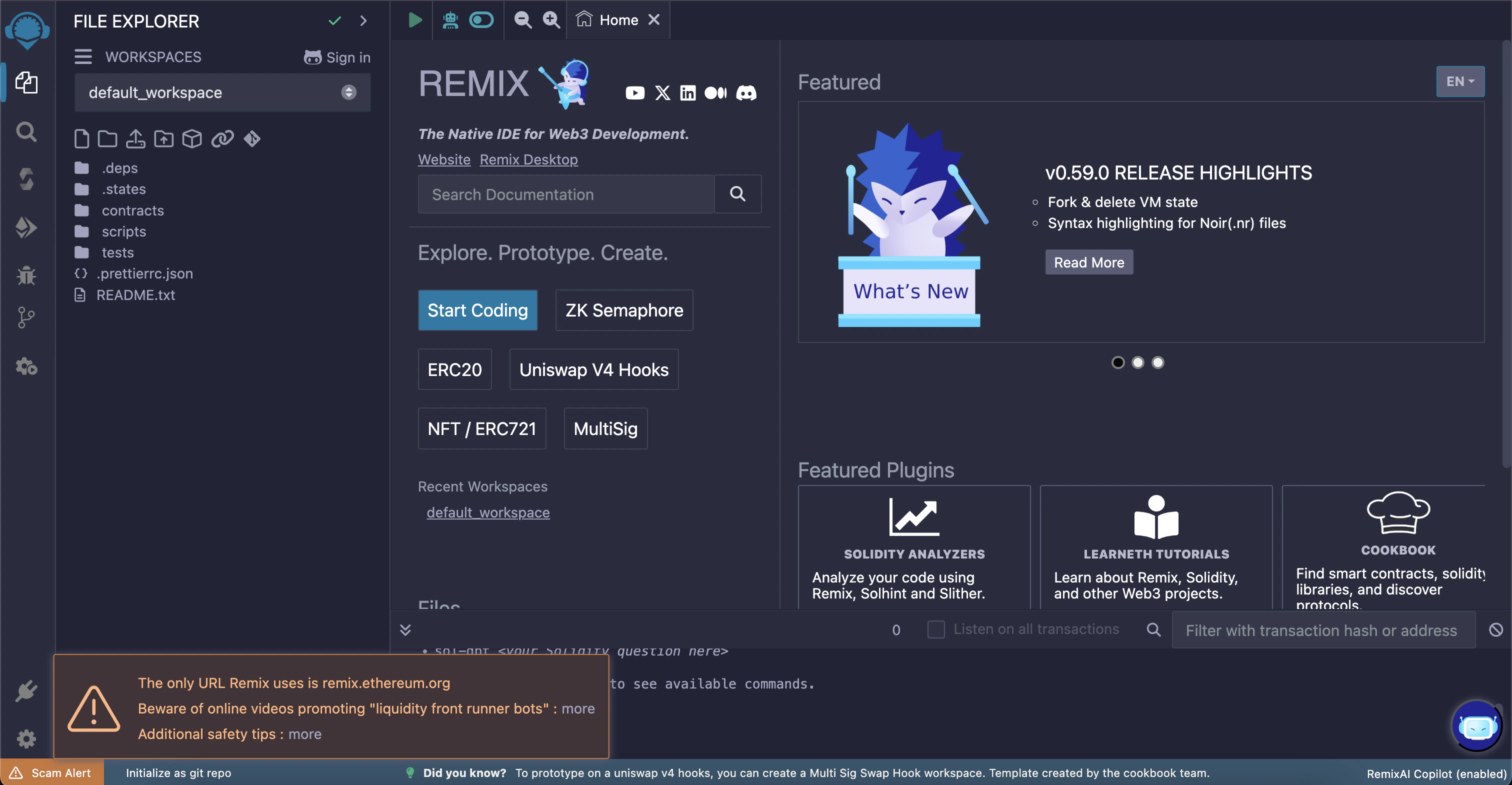 确保选中 'contracts' 文件夹,然后使用左上角的 "Create new file" 按钮创建新文件。
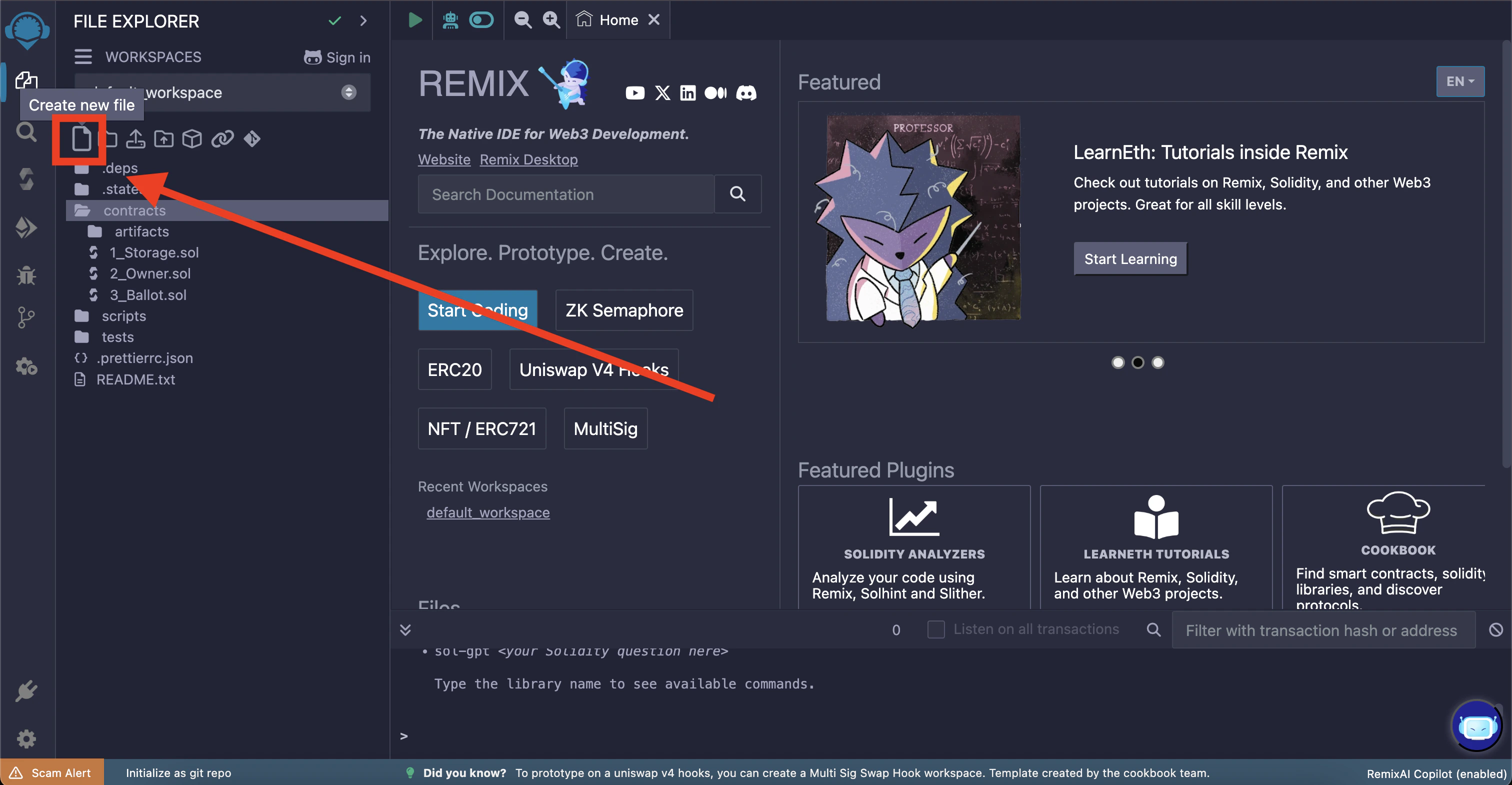 将新文件命名为 "Gmonad.sol" 并将以下代码添加到其中
```solidity lines title="src/Gmonad.sol" theme={null}
// SPDX-License-Identifier: MIT
pragma solidity ^0.8.24;
contract Gmonad {
string public greeting;
constructor(string memory _greeting) {
greeting = _greeting;
}
function setGreeting(string calldata _greeting) external {
greeting = _greeting;
}
}
```
**注意:** 您可能会在 `pragma solidity...` 行下方看到红色波浪线;这是因为默认编译器版本超出了合约中指定的范围。我们将在下一步中修复它。
将新文件命名为 "Gmonad.sol" 并将以下代码添加到其中
```solidity lines title="src/Gmonad.sol" theme={null}
// SPDX-License-Identifier: MIT
pragma solidity ^0.8.24;
contract Gmonad {
string public greeting;
constructor(string memory _greeting) {
greeting = _greeting;
}
function setGreeting(string calldata _greeting) external {
greeting = _greeting;
}
}
```
**注意:** 您可能会在 `pragma solidity...` 行下方看到红色波浪线;这是因为默认编译器版本超出了合约中指定的范围。我们将在下一步中修复它。
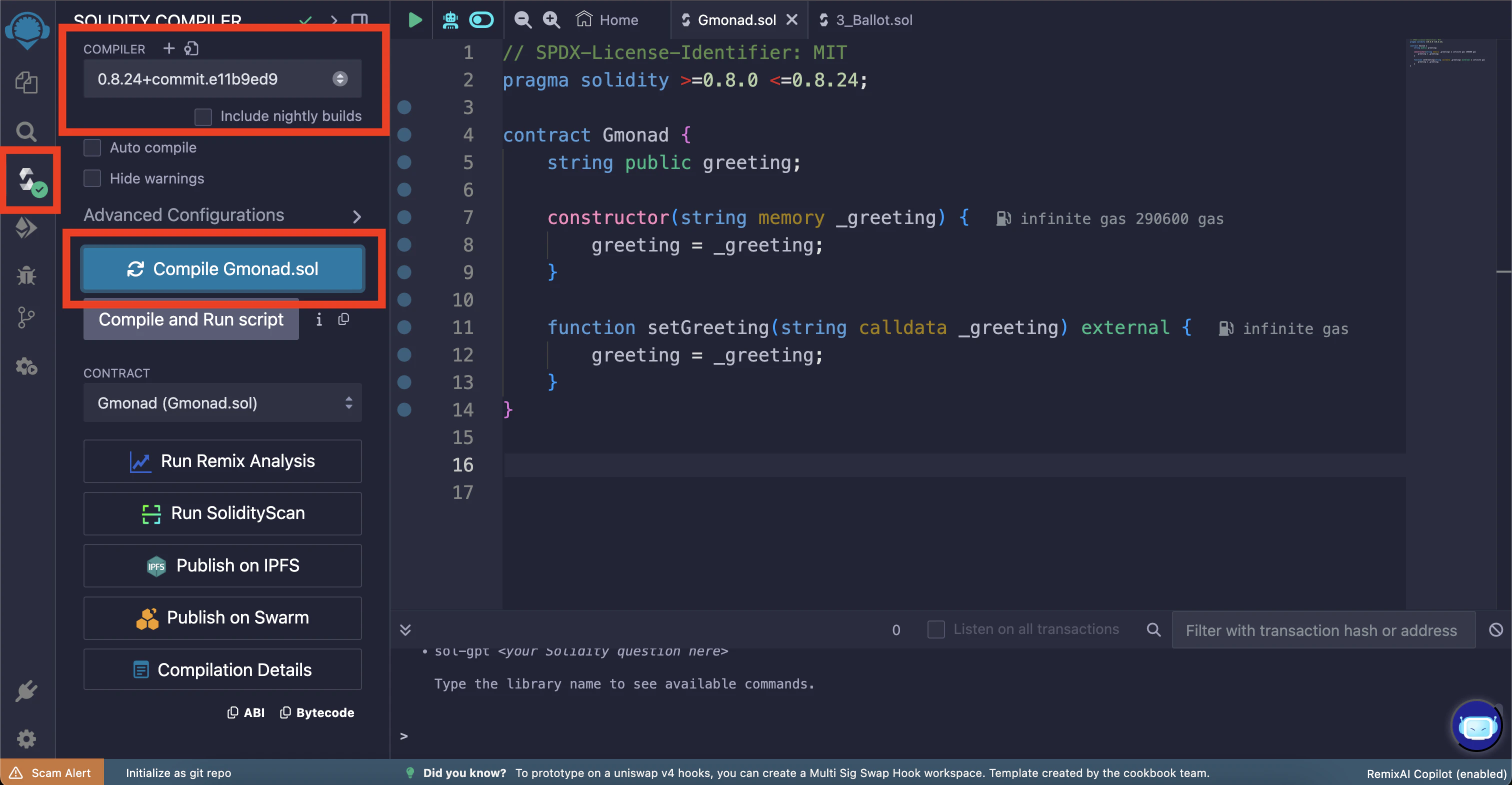
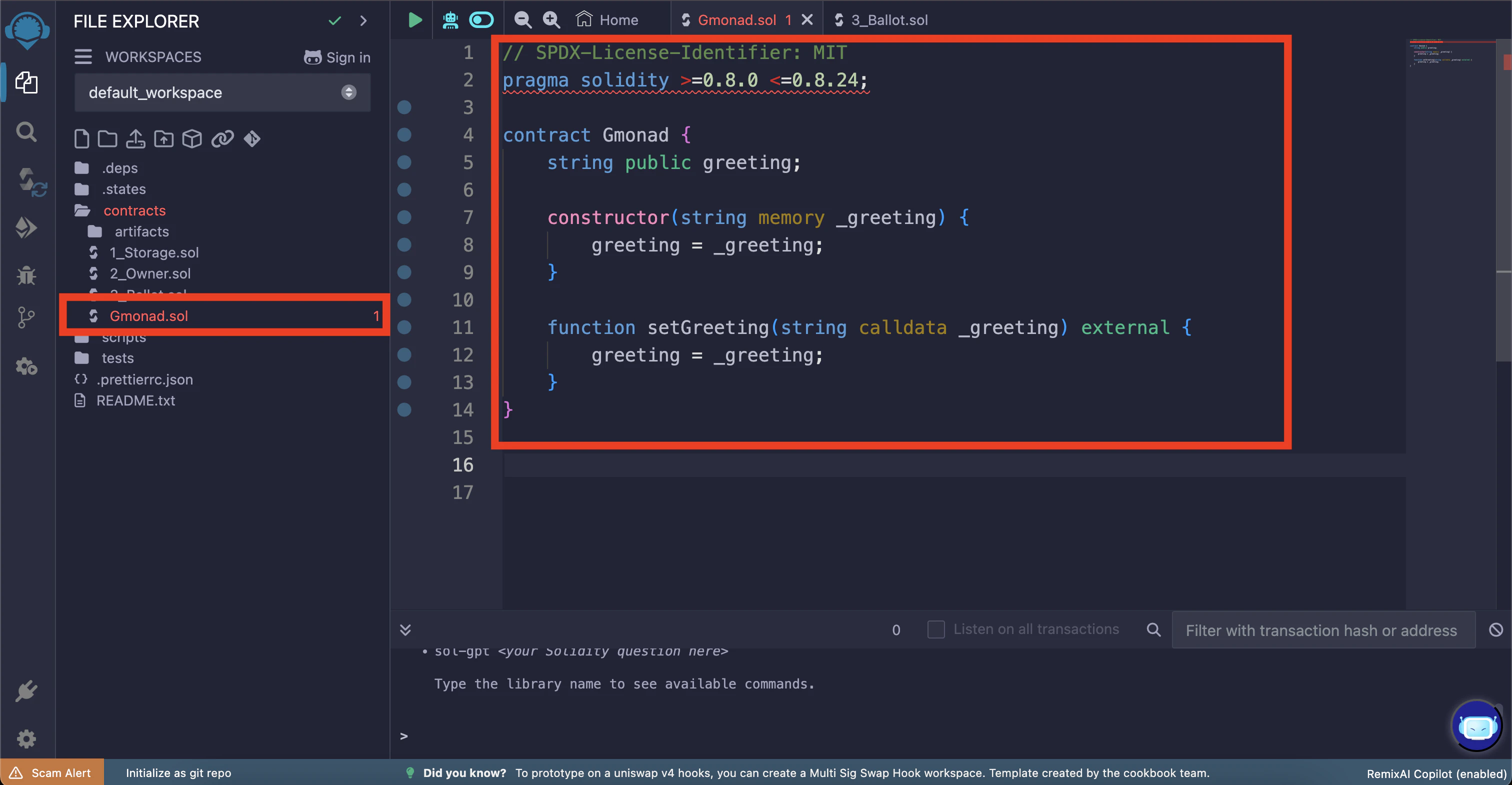 让我们编译智能合约。通过点击最左侧的 "Solidity compiler" 选项卡进入编译器视图。然后选择正确的编译器版本(0.8.24)。
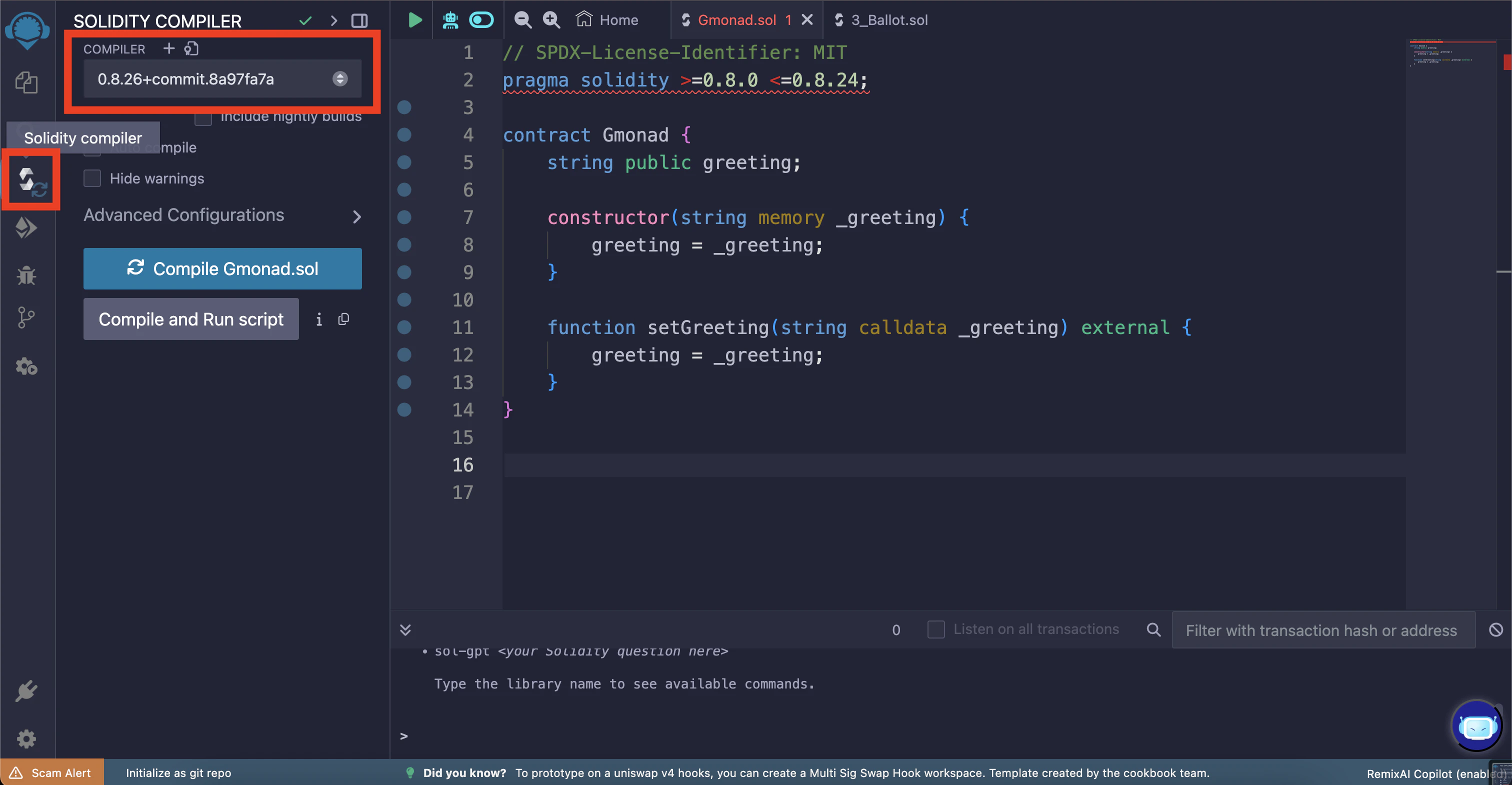 选择正确的编译器版本后,点击 "Compile Gmonad.sol" 按钮。如果成功,您将看到 "Solidity compiler" 选项卡图标上出现绿色的对勾。
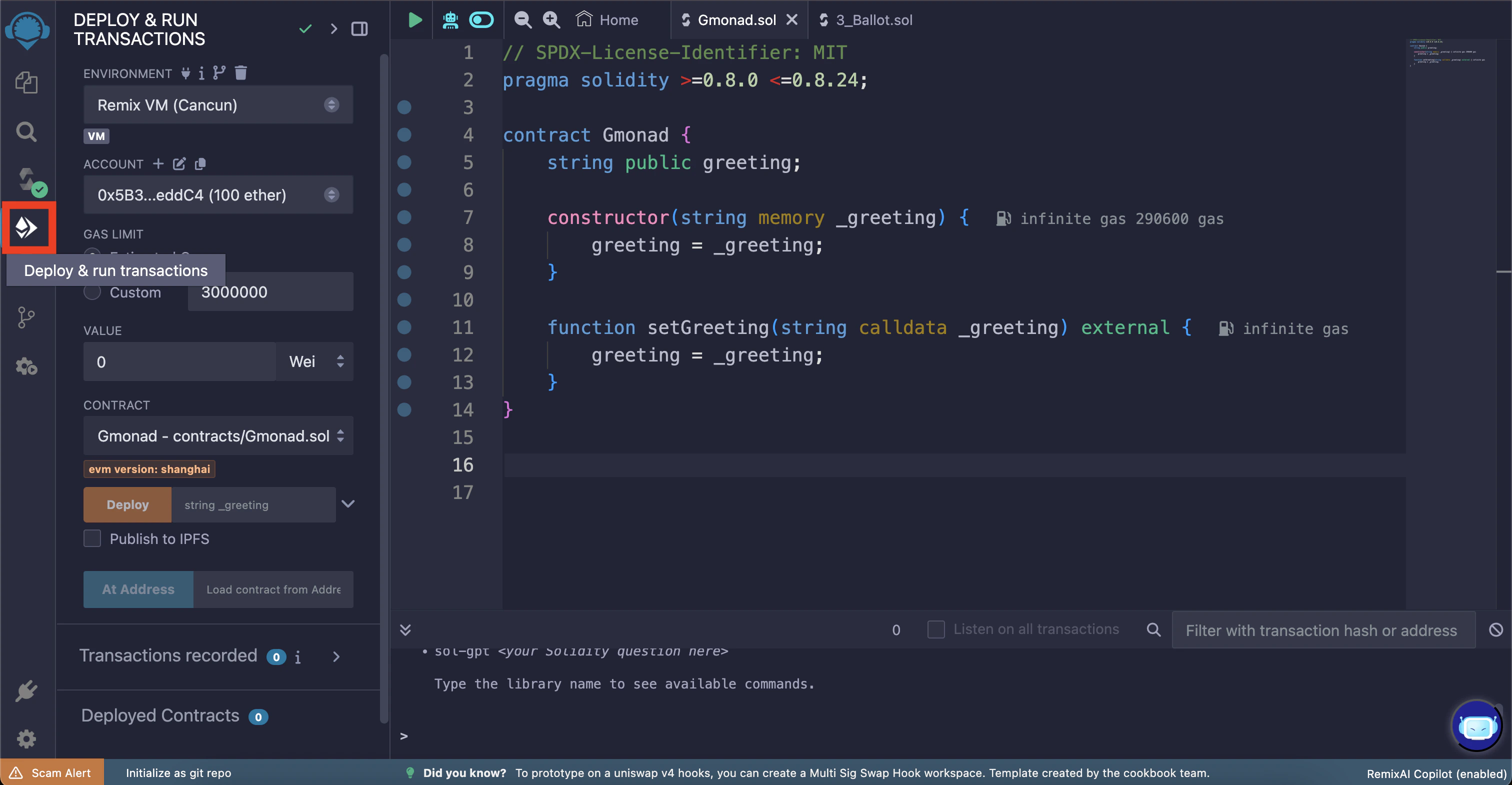
 现在我们可以部署智能合约了!使用最左侧的 "Deploy & run transactions" 选项卡进入部署视图。
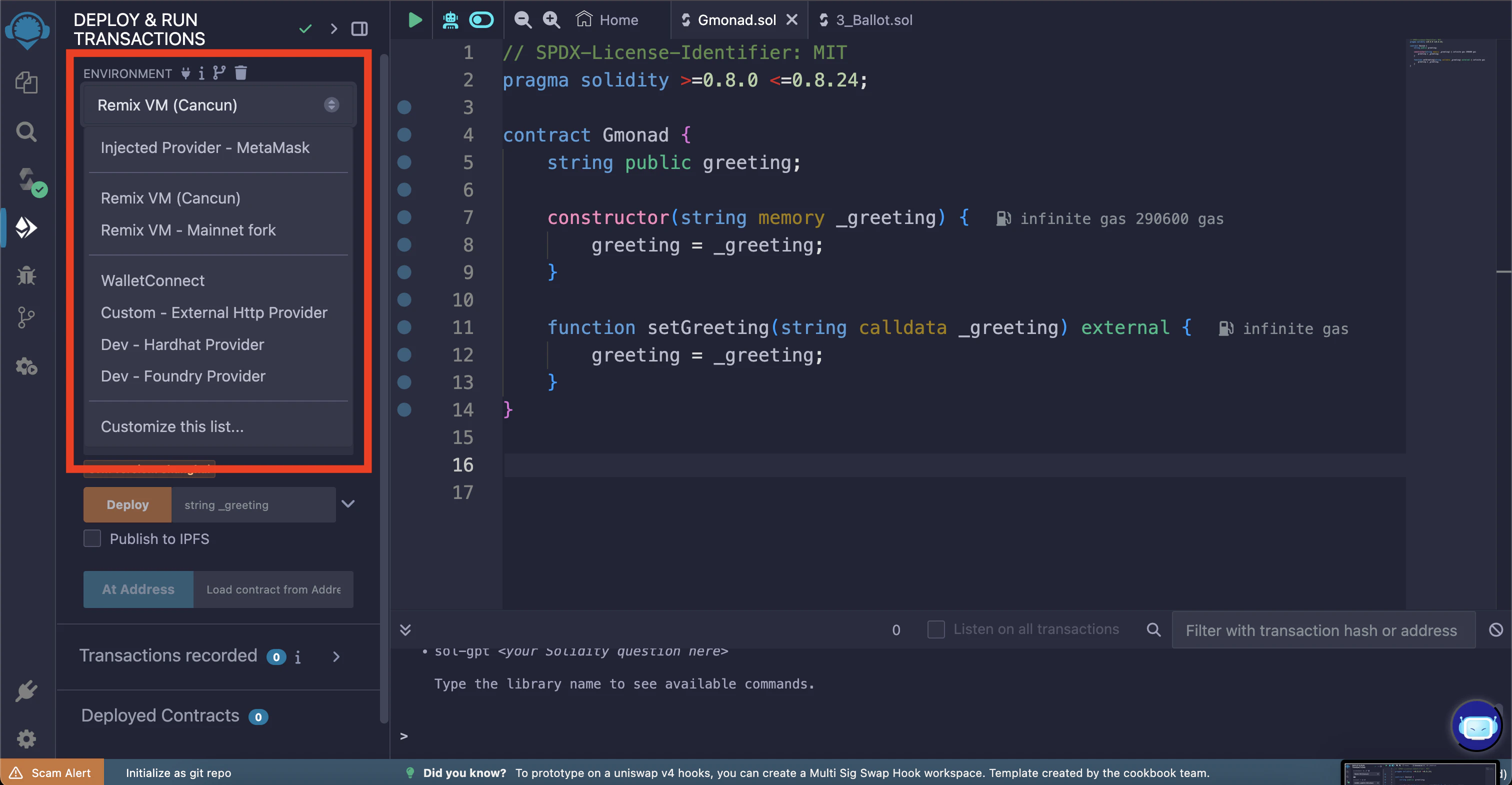
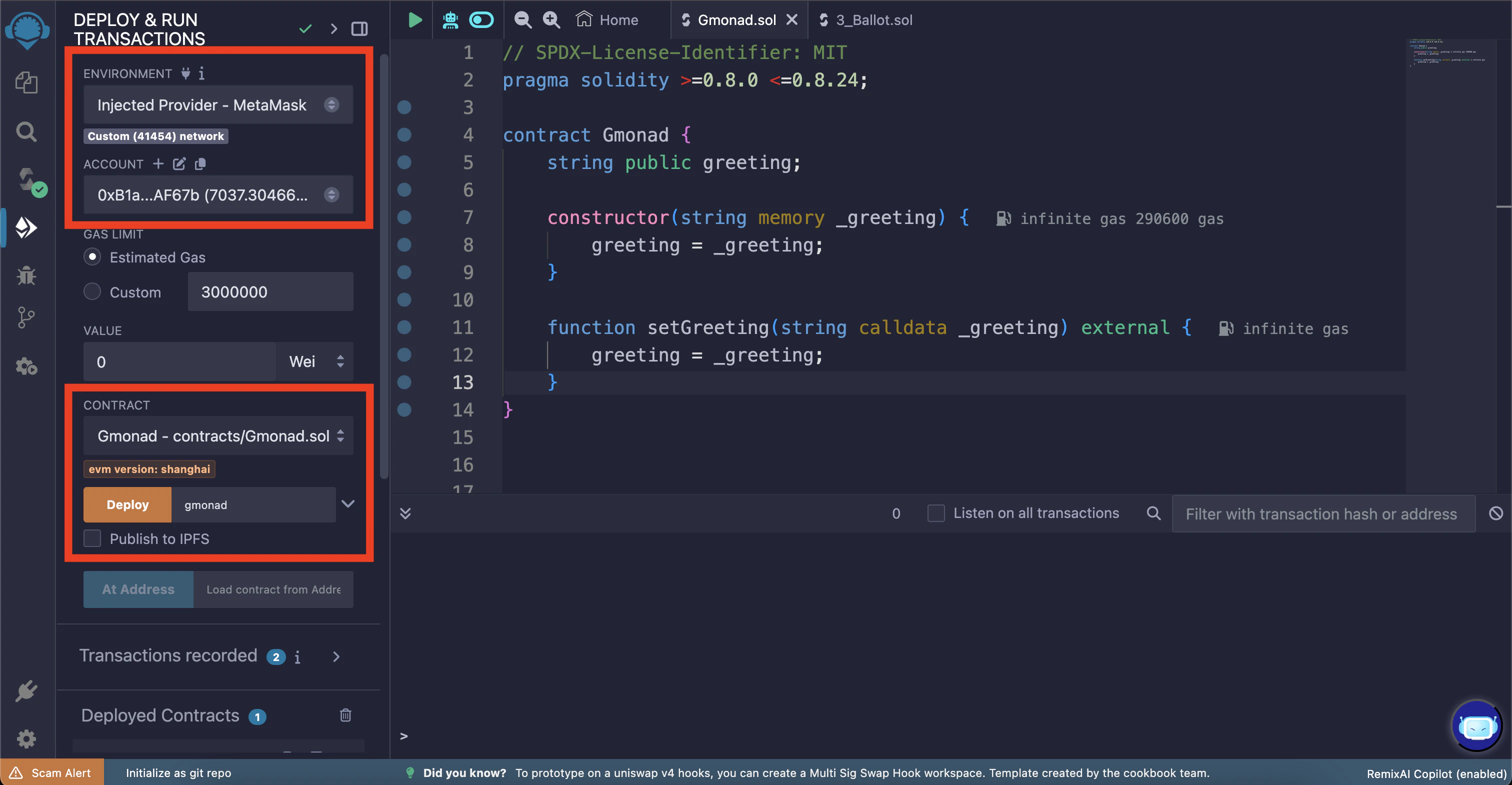
 使用 "Environment" 下拉菜单,选择 "Injected Provider" 以连接到您的钱包。
下面的截图显示 "Injected Provider - MetaMask";如果您使用 MetaMask 以外的其他钱包,您可能会看到相应的选项。
使用 "Environment" 下拉菜单,选择 "Injected Provider" 以连接到您的钱包。
下面的截图显示 "Injected Provider - MetaMask";如果您使用 MetaMask 以外的其他钱包,您可能会看到相应的选项。
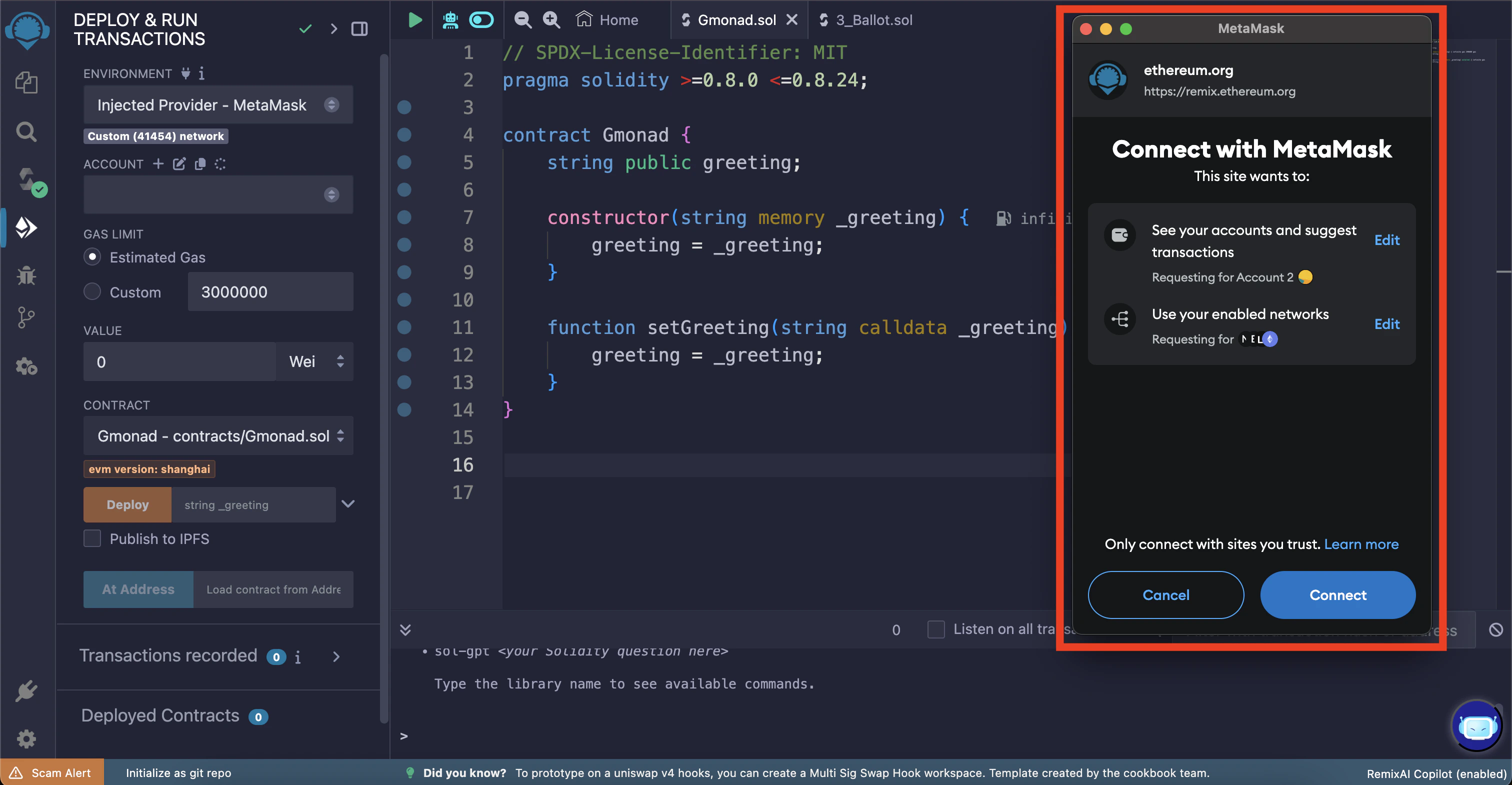
 您的钱包应弹出请求连接到 Remix 的权限,请点击 "Connect"。
 连接后,您应该能在 "Account" 下拉菜单中看到您的地址和余额。
请确保您在 "Environment" 下拉菜单下也看到了正确的链 ID。
现在让我们部署合约。`Gmonad.sol` 需要向构造函数传入一条问候消息才能部署;选择您喜欢的问候消息(在此示例中为 "gmonad")。
现在您可以通过点击 "Deploy" 按钮部署智能合约。
连接后,您应该能在 "Account" 下拉菜单中看到您的地址和余额。
请确保您在 "Environment" 下拉菜单下也看到了正确的链 ID。
现在让我们部署合约。`Gmonad.sol` 需要向构造函数传入一条问候消息才能部署;选择您喜欢的问候消息(在此示例中为 "gmonad")。
现在您可以通过点击 "Deploy" 按钮部署智能合约。
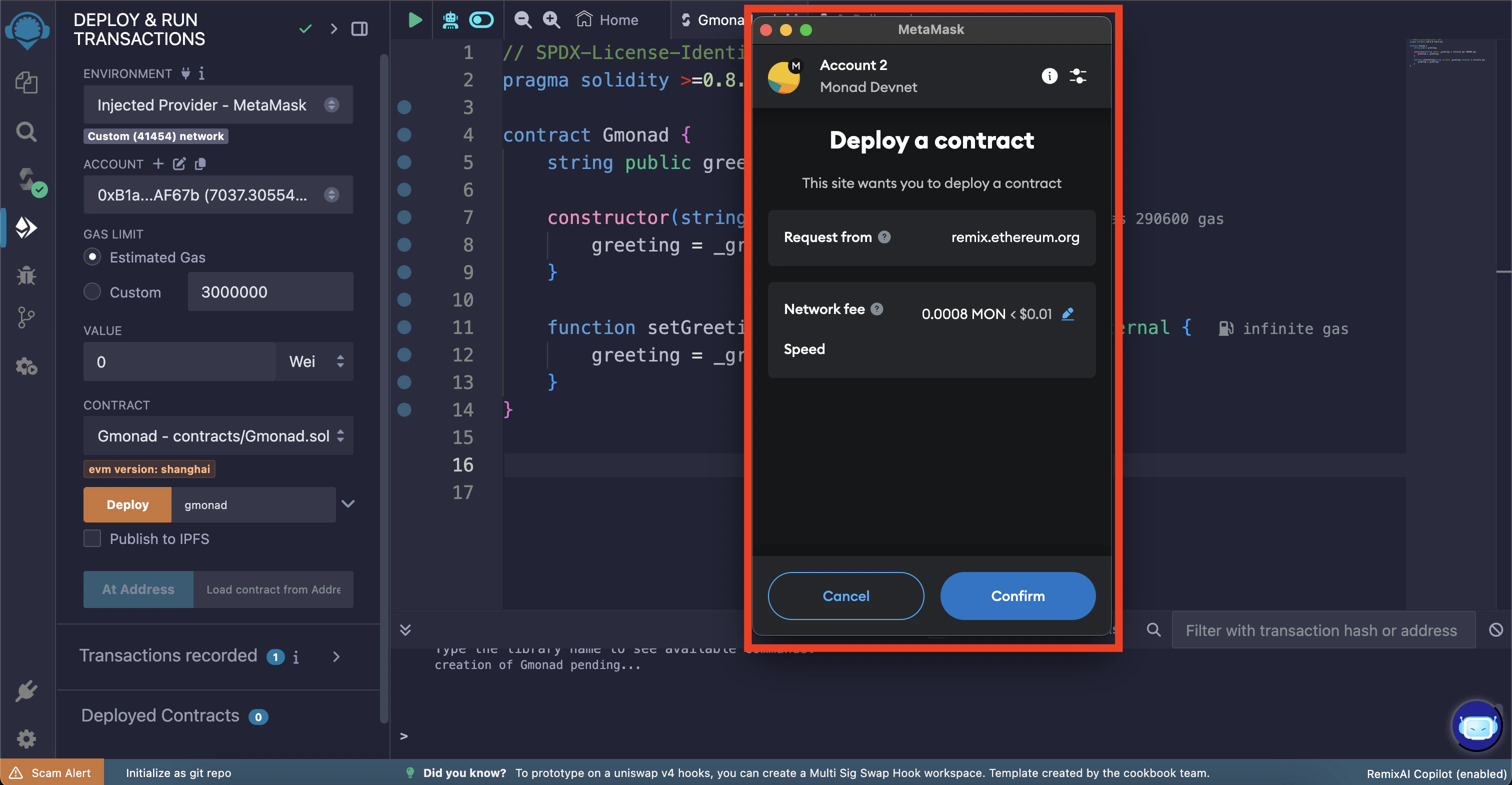
 您应该会看到钱包弹窗,请求确认部署智能合约。点击 "Confirm"。
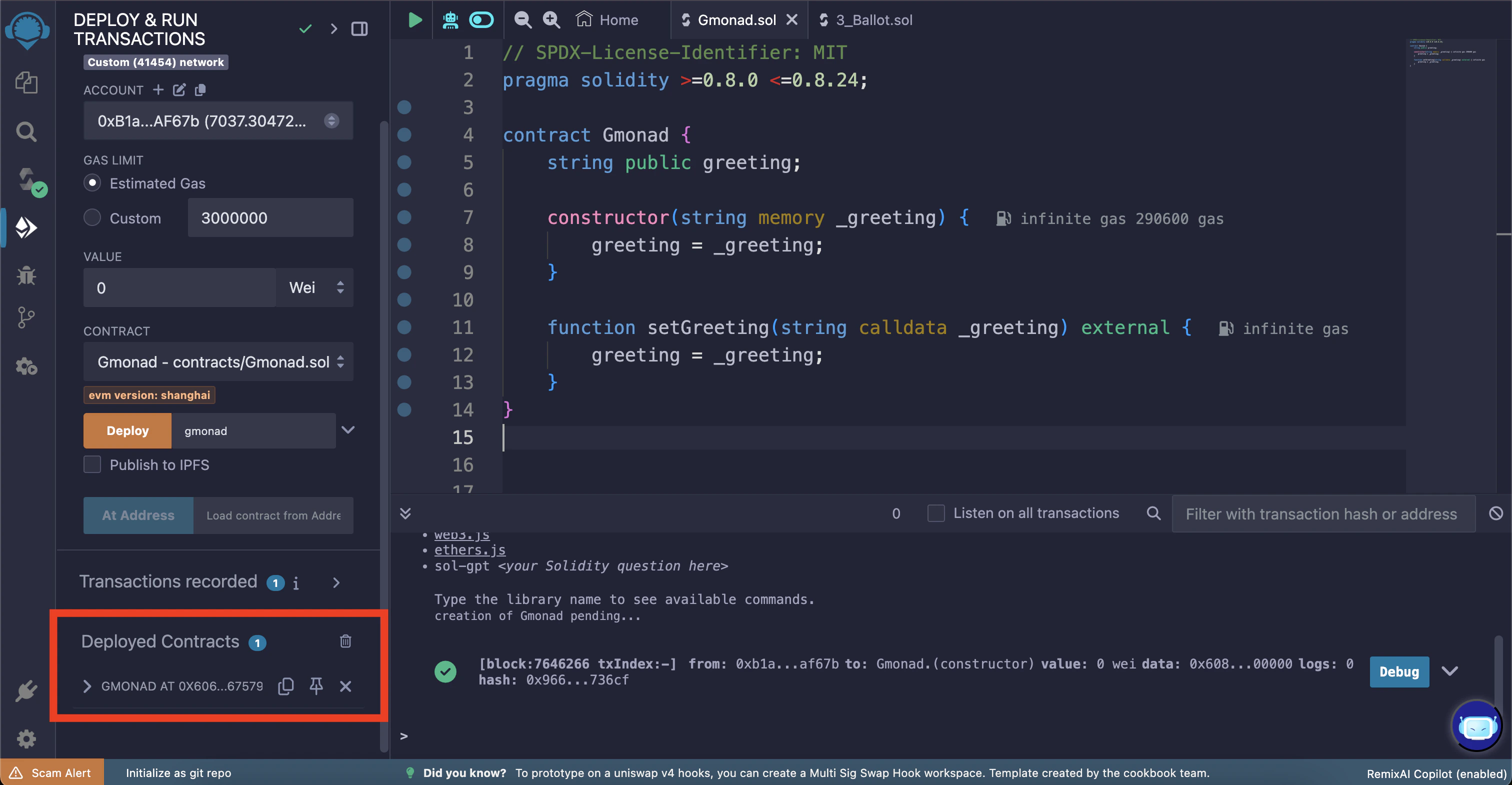
 交易确认后,您将在左下角的 "Deployed Contracts" 部分看到智能合约地址。
 ## 与智能合约交互
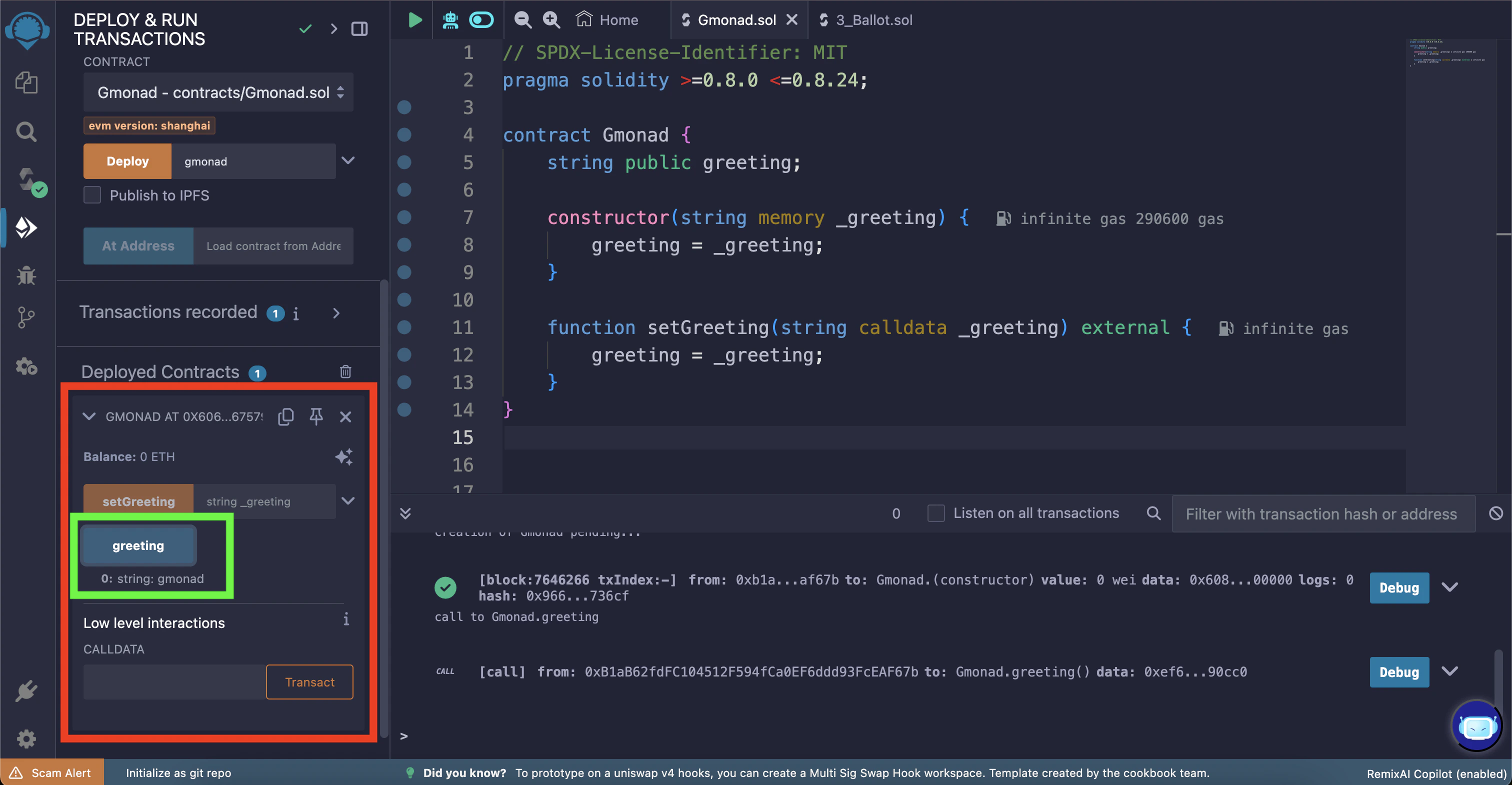
您可以展开智能合约以查看可用的函数。
在其中您会找到一个 `greeting` 按钮,可用于读取当前存储在智能合约中的问候消息。
点击 "greeting" 按钮调用 `greeting()` 方法(它输出当前的问候消息)。您需要点击终端输出中的展开箭头来查看已解码的输出。
这个 "greeting" 按钮是一个 getter 函数,它是为智能合约中的 *public* `greeting` 状态变量自动创建的。
## 与智能合约交互
您可以展开智能合约以查看可用的函数。
在其中您会找到一个 `greeting` 按钮,可用于读取当前存储在智能合约中的问候消息。
点击 "greeting" 按钮调用 `greeting()` 方法(它输出当前的问候消息)。您需要点击终端输出中的展开箭头来查看已解码的输出。
这个 "greeting" 按钮是一个 getter 函数,它是为智能合约中的 *public* `greeting` 状态变量自动创建的。
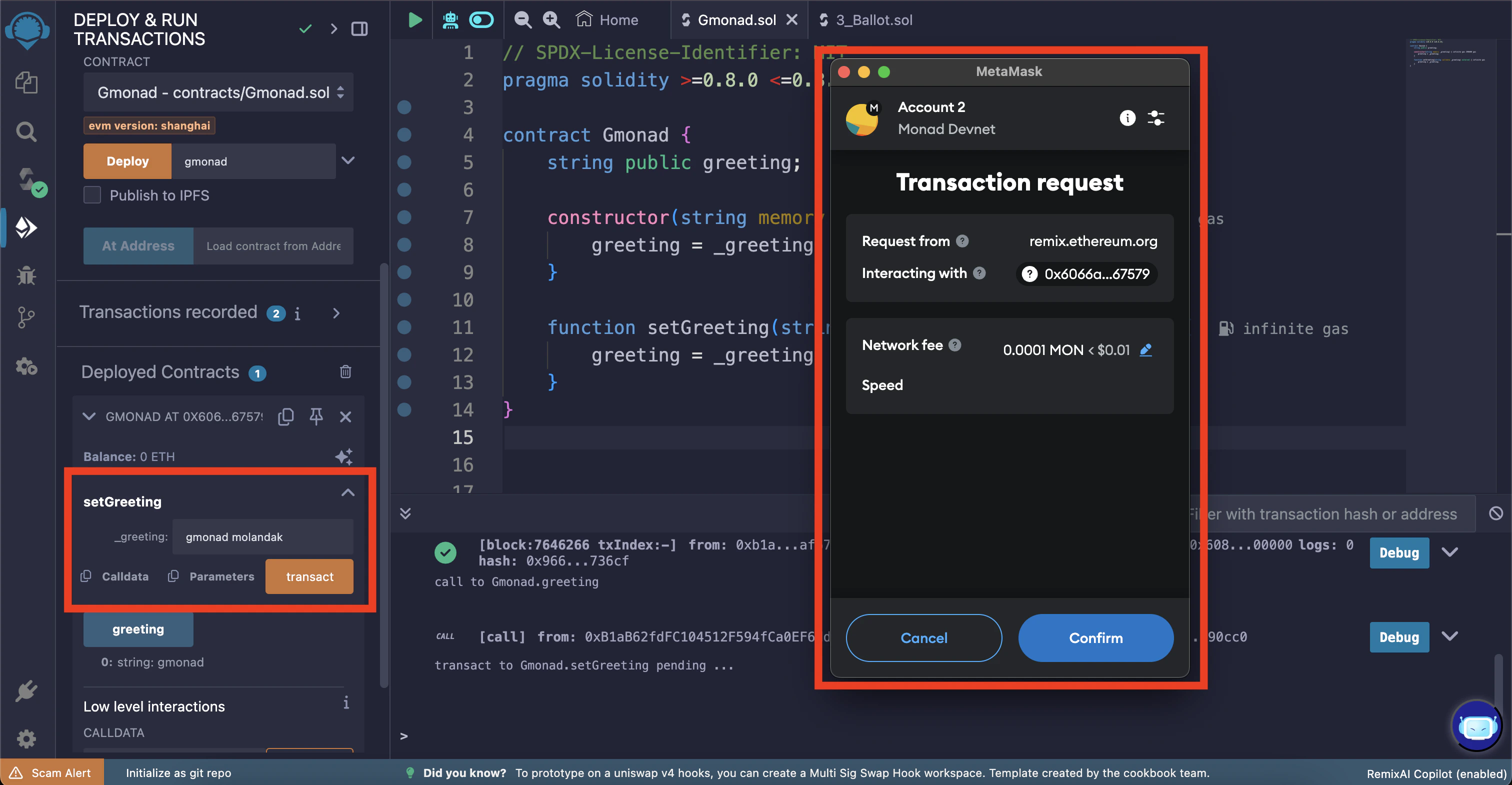
 您可以使用 `setGreeting` 函数更改问候消息。
在本示例中,我们将问候消息更改为 "gmonad molandak"。
再次点击 "transact" 按钮以发起交易。
您应该会看到钱包弹窗,请求确认更改问候消息。点击 "Confirm"。
您可以使用 `setGreeting` 函数更改问候消息。
在本示例中,我们将问候消息更改为 "gmonad molandak"。
再次点击 "transact" 按钮以发起交易。
您应该会看到钱包弹窗,请求确认更改问候消息。点击 "Confirm"。
 交易确认后,您可以使用 `greeting` 按钮查看更新后的问候消息。
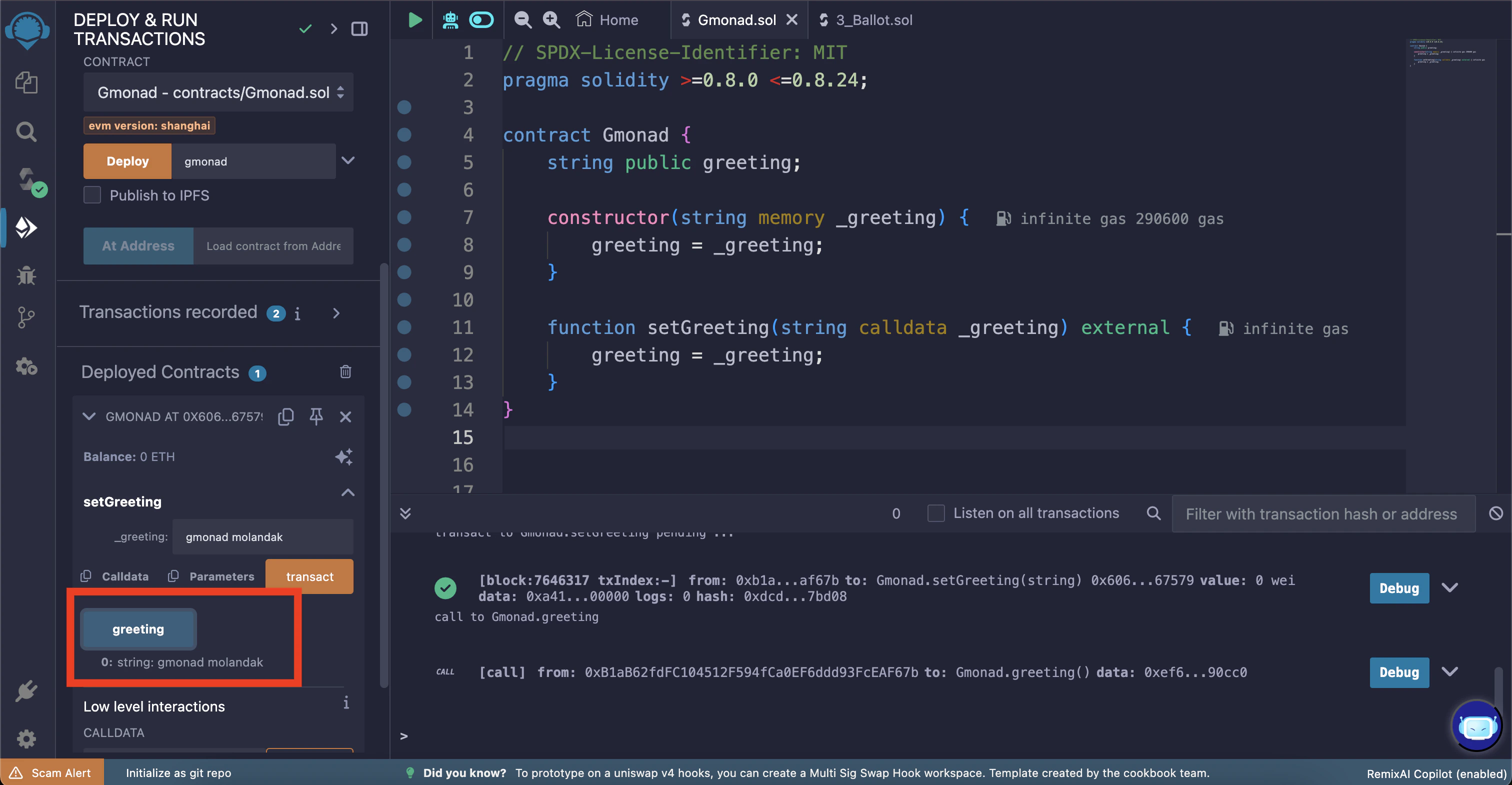 恭喜!您已成功使用 Remix IDE 在 Monad 测试网上部署了智能合约并与之交互。